
mac-use-mcp
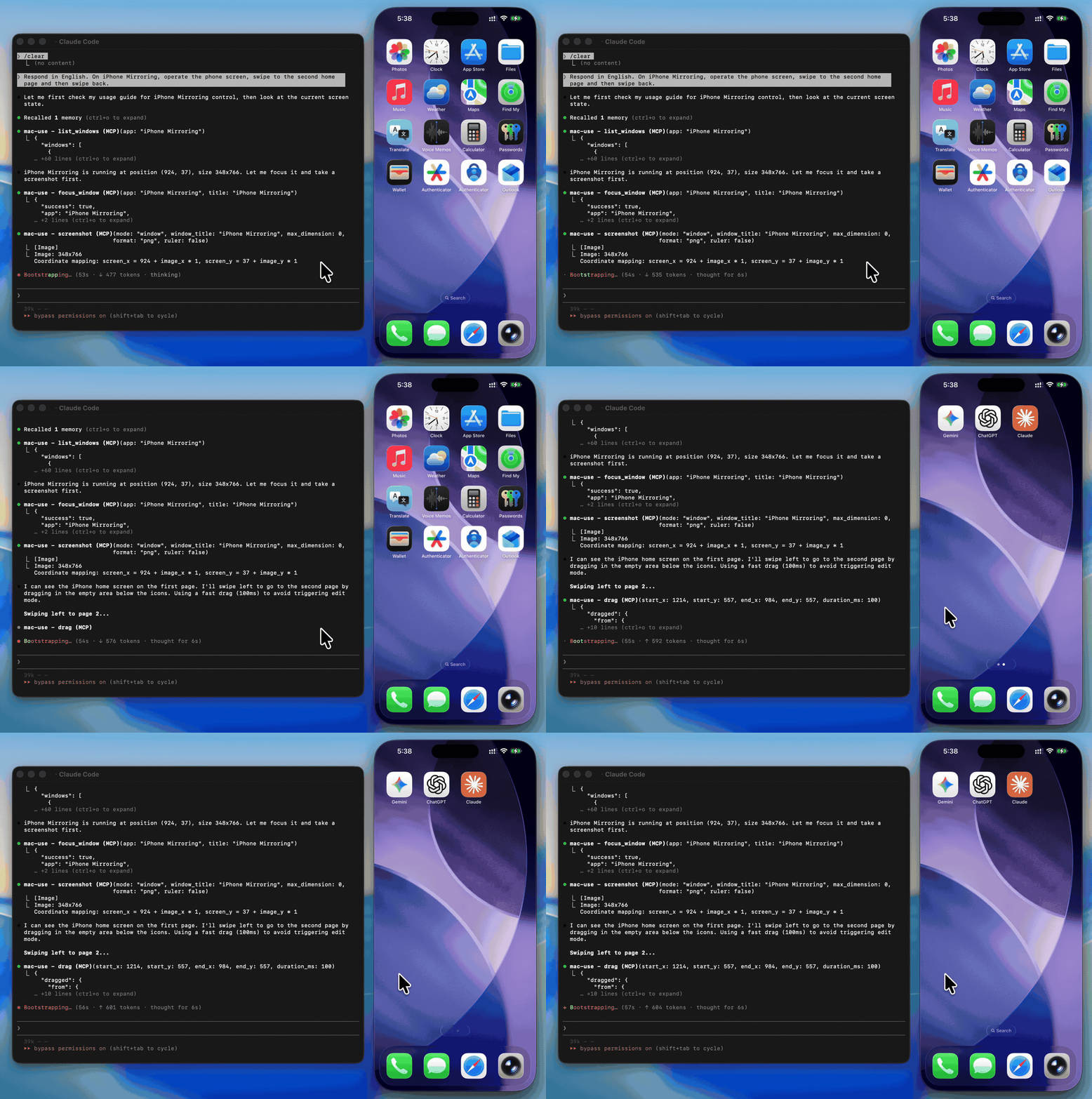
[!WARNING]This tool has full control over mouse, keyboard, and screen. Please use in a sandboxed environment to protect your privacy and avoid accidental data loss by your agents. You are responsible for any actions performed through this tool.
Zero-native-dependency macOS desktop automation via MCP.
Give AI agents eyes and hands on macOS — click, type, screenshot, and inspect any application.







Use Cases
- Automated UI testing — click buttons, verify element states with
get_ui_elements, validate screen content viascreenshot - Desktop workflow automation — launch apps with
open_application, fill forms withtype_text, navigate menus viaclick_menu - Screenshot-based monitoring — capture screen regions periodically with
screenshotfor visual diffing or alerting - Accessibility inspection — query UI element trees with
get_ui_elementsfor QA and compliance checks - AI agent computer use — give LLMs eyes and hands on macOS via
screenshot,click,type_text, and more
Why mac-use-mcp?
- Just works —
npx mac-use-mcpand grant two macOS permissions. No node-gyp, no Xcode tools, no build step. - 18 tools, one server — screenshots, clicks, keystrokes, window management, accessibility inspection, and clipboard.
- macOS 13+ on Intel and Apple Silicon — no native addons, no architecture headaches.
Install
Requirements: macOS 13+ and Node.js 22+. The server communicates over stdio transport.
This package only works on macOS. It will refuse to install on other operating systems.
No build steps. No native dependencies. Just run:
npx mac-use-mcp
npxwill prompt to install the package on first run. Usenpx -y mac-use-mcpto skip the confirmation.
[!TIP]Model selection matters. Desktop automation involves screenshot–action loops that add up in token usage. A fast model with solid reasoning, good vision, and reliable tool calling is recommended:
Model Provider Gemini 3 Flash Claude Sonnet 4.6 Anthropic GPT-5 mini OpenAI MiniMax-M2.5 MiniMax Kimi K2.5 Moonshot AI Qwen3.5 Alibaba GLM-4.7 Zhipu AI
Permission Setup
mac-use-mcp requires two macOS permissions to function. Grant them once and you're set.
Accessibility
Required for mouse and keyboard control.
- Open System Settings > Privacy & Security > Accessibility
- Click the + button
- Add your MCP client application (e.g., Claude Desktop, your terminal emulator)
- Ensure the toggle is enabled
Screen Recording
Required for screenshots.
- Open System Settings > Privacy & Security > Screen Recording
- Click the + button
- Add your MCP client application
- Ensure the toggle is enabled
- Restart the application if prompted
Verify permissions
After granting both permissions and configuring your MCP client (see next section), use the check_permissions tool to confirm everything is working:
> check_permissions
✓ Accessibility: granted
✓ Screen Recording: granted
MCP Client Configuration
Claude Codeclaude mcp add mac-use-mcp -- npx mac-use-mcp
Add to ~/Library/Application Support/Claude/claude_desktop_config.json:
{
  "mcpServers": {
    "mac-use-mcp": {
      "command": "npx",
      "args": ["mac-use-mcp"]
    }
  }
}
Add to ~/.codex/config.toml:
[mcp_servers.mac-use]
command = "npx"
args = ["-y", "mac-use-mcp"]
Or via CLI:
codex mcp add mac-use -- npx -y mac-use-mcp
Add to ~/.gemini/antigravity/mcp_config.json:
{
  "mcpServers": {
    "mac-use-mcp": {
      "command": "npx",
      "args": ["mac-use-mcp"]
    }
  }
}
Add to ~/.gemini/settings.json:
{
  "mcpServers": {
    "mac-use-mcp": {
      "command": "npx",
      "args": ["mac-use-mcp"]
    }
  }
}
Add to .vscode/mcp.json in your workspace (or open the Command Palette and run MCP: Open User Configuration for global setup):
{
  "servers": {
    "mac-use-mcp": {
      "command": "npx",
      "args": ["mac-use-mcp"]
    }
  }
}
Add to ~/.cursor/mcp.json (global) or .cursor/mcp.json (project-level):
{
  "mcpServers": {
    "mac-use-mcp": {
      "command": "npx",
      "args": ["mac-use-mcp"]
    }
  }
}
Add to ~/.codeium/windsurf/mcp_config.json:
{
  "mcpServers": {
    "mac-use-mcp": {
      "command": "npx",
      "args": ["mac-use-mcp"]
    }
  }
}
Open Cline's MCP settings (in the Cline extension panel, click the MCP servers icon), then add:
{
  "mcpServers": {
    "mac-use-mcp": {
      "command": "npx",
      "args": ["mac-use-mcp"]
    }
  }
}
Add to ~/.aws/amazonq/mcp.json:
{
  "mcpServers": {
    "mac-use-mcp": {
      "command": "npx",
      "args": ["mac-use-mcp"]
    }
  }
}
Tools
This Node.js MCP server exposes 18 tools for mouse, keyboard, and screen control to any MCP-compatible client.
Screen
| Tool | Description |
|---|---|
screenshot |
Capture the screen, a region, or a window by title (PNG or JPEG) |
get_screen_info |
Get display count, resolution, origin, and scale factor for each display |
get_cursor_position |
Get current cursor coordinates |
Input
| Tool | Description |
|---|---|
click |
Click at screen coordinates with button, click count, and modifier options |
move_mouse |
Move the cursor to a position |
scroll |
Scroll up, down, left, or right at a position |
drag |
Drag from one point to another over a configurable duration |
type_text |
Type text at the cursor position (supports Unicode, CJK, and emoji) |
press_key |
Press a key or key combination (e.g., "cmd+c", "Return") |
Window & App
| Tool | Description |
|---|---|
list_windows |
List all visible windows with positions and sizes |
focus_window |
Activate an app and bring a specific window to the front |
open_application |
Launch an application by name |
click_menu |
Click a menu bar item by path (e.g., "File > Save As...") |
App names support fuzzy matching — "chrome" resolves to "Google Chrome", "code" to "Code", etc.
Accessibility
| Tool | Description |
|---|---|
get_ui_elements |
Query UI elements via Accessibility API — find buttons, text fields, and other controls by role or title |
Clipboard
| Tool | Description |
|---|---|
clipboard_read |
Read the current system clipboard as plain text |
clipboard_write |
Write text to the system clipboard |
Utility
| Tool | Description |
|---|---|
wait |
Pause for a specified duration (in milliseconds, 0–10 000, default 500) |
check_permissions |
Verify Accessibility and Screen Recording access |
Examples
Common workflow patterns using mac-use-mcp tools:
Screenshot a specific window
1. focus_window({ app: "Safari" })
2. screenshot({ mode: "window", window_title: "Safari" })
Click a button in a dialog
1. get_ui_elements({ app: "Finder", role: "AXButton" })
   → finds "OK" button at position (500, 300)
2. click({ x: 500, y: 300 })
Automate a menu action
1. open_application({ name: "TextEdit" })
2. click_menu({ app: "TextEdit", path: "Format > Make Plain Text" })
Copy text between apps
1. focus_window({ app: "Safari" })
2. press_key({ key: "cmd+a" })       # select all
3. press_key({ key: "cmd+c" })       # copy
4. focus_window({ app: "Notes" })
5. press_key({ key: "cmd+v" })       # paste
How It Works
- Swift binary handles mouse input (CGEvent), screen capture (CGWindowListCreateImage), window enumeration (CGWindowListCopyWindowInfo), and UI element queries (Accessibility API)
- AppleScript handles keyboard input (System Events
key code), window focus, and menu clicks - Node.js MCP server orchestrates everything over stdio, translating MCP tool calls into system operations
- No native Node.js addons — the Swift binary is pre-compiled and ships with the npm package
- Serial execution queue prevents race conditions between system operations
Known Limitations
- Screen Recording prompt on Sequoia: macOS 15 shows a monthly system prompt asking to reconfirm Screen Recording access. This is an OS-level behavior and cannot be suppressed.
- Secure input fields: Password fields and other secure text inputs block synthetic keyboard events. This is a macOS security feature.
- Keyboard input on macOS 26+: CGEvent keyboard synthesis is silently blocked. Keyboard input uses AppleScript (
System Events key code) as a workaround, which may behave differently in some edge cases. - System dialogs: Some system-level dialogs (e.g., FileVault unlock, Login Window) cannot be interacted with programmatically due to macOS security restrictions.
- Headless / CI: Requires a graphical session. Headless macOS environments (e.g., standard GitHub Actions runners) are not supported.
Troubleshooting
Permission prompts keep appearingGrant Accessibility and Screen Recording permissions to your terminal app in System Settings > Privacy & Security. A restart of the terminal may be required.
macOS Sequoia permission dialogsmacOS 15 (Sequoia) introduced stricter permission prompts. Allow the prompts when they appear. The check_permissions tool can verify your current permission status.
Some password fields and secure text inputs block programmatic key events. This is a macOS security feature. Use clipboard_write + press_key("cmd+v") as a workaround.
Ensure Screen Recording permission is granted to your terminal app (not just Accessibility). Restart the terminal after granting.
Related Projects
- Playwright MCP — Browser automation via accessibility tree. Complements mac-use-mcp for web-only tasks.
- Peekaboo — macOS screen automation with ScreenCaptureKit. Requires macOS 15+ and a Swift build.
- awesome-mcp-servers — Curated list of MCP servers across the ecosystem.
Contributing
See CONTRIBUTING.md for development setup and guidelines.
Changelog
Security
To report a vulnerability, see SECURITY.md.
Support
- Found a bug? Open an issue
- Have a feature idea? Open an issue
- Like the project? Give it a star — it helps others discover mac-use-mcp.
License
MIT © 2026 antbotlab
macOS is a trademark of Apple Inc., registered in the U.S. and other countries and regions.


