
GR-MCP


GR-MCP is a Model Context Protocol (MCP) server that exposes GNU Radio's block library, flowgraph management, and code generation to LLM clients. It enables natural language-driven flowgraph creation through validated tool calls that enforce GNU Radio's type system and connection rules. The server has been tested with Claude, Codex, and locally-hosted models via llama.cpp.
Statement of Need
GNU Radio provides an open-source framework with hundreds of signal processing blocks for applications ranging from FM receivers to complex digital communication systems. However, the steep learning curve associated with its block library, parameter configuration, and connection rules presents a barrier to rapid prototyping. When LLMs are used for GNU Radio flowgraph generation without domain-specific tooling, they produce syntactically plausible but frequently non-functional outputs with type mismatches, invalid parameters, and improper connections.
GR-MCP bridges this gap by providing LLMs with structured access to GNU Radio through the Model Context Protocol. The type system pre-validates connections before they are made, the block database provides accurate parameter specifications, and validation tools catch errors before code generation. The system supports both cloud-based LLMs and local models served via llama.cpp for offline operation.
Installation
GR-MCP requires Python 3.10 or later and a working GNU Radio 3.10+ installation.
1. Install GNU Radio
sudo apt install gnuradio
For other operating systems and versions, see the GNU Radio installation guide.
2. Install GR-MCP
git clone https://github.com/dollarhyde/gr-mcp.git
cd gr-mcp
pip install -r requirements.txt
3. Verify Installation
python -c "from gnuradio.grc.core.platform import Platform; print('GNU Radio OK')"
python -c "from mcp.server.fastmcp import FastMCP; print('MCP SDK OK')"
Usage
Client Configuration
Claude Code
Register the MCP server with Claude Code:
claude mcp add gr-mcp python /path/to/gr-mcp/src/bridge_mcp_gnuradio.py
This will automatically add the server configuration to .claude/settings.json in your project or home directory.
Codex
Register the MCP server with Codex:
codex mcp add gr-mcp python /path/to/gr-mcp/src/bridge_mcp_gnuradio.py
This will automatically add the server configuration to ~/.codex/config.toml.
Other MCP Clients
Start the server with SSE transport and point your client at the endpoint:
python src/bridge_mcp_gnuradio.py --transport sse --port 8000
# Connect your client to http://localhost:8000/mcp
Examples
Interactive hardware detection and setup
GR-MCP detects connected SDR hardware. When used with an AI assistant, the workflow becomes conversational, the LLM calls the MCP tools and guides you through configuration interactively.
User: detect sdr

┌─ detect_sdr_hardware(rescan=true) ────────────────────────────┐
│ status: devices_found                                         │
│ count: 3                                                      │
└───────────────────────────────────────────────────────────────┘

AI Assistant: Found 3 devices via UHD:

  ┌───────┬──────────┬──────────┬──────────┐
  │ Index │   Type   │ Product  │  Serial  │
  ├───────┼──────────┼──────────┼──────────┤
  │ 0     │ unknown  │ —        │ —        │
  │ 1     │ unknown  │ —        │ —        │
  │ 2     │ B200mini │ B200mini │ XXXXXXX  │
  └───────┴──────────┴──────────┴──────────┘

  The USRP B200mini (index 2) is clearly identified.
  Would you like me to set up the B200mini for use?

User: Yes

AI Assistant prompts interactively:

  Which antenna port?
  ❯ 1. TX/RX    (Recommended)
    2. RX2

  What sample rate?
  ❯ 1. 2 MHz    (good general purpose)
    2. 10 MHz   (wider bandwidth)
    3. 20 MHz   (wideband capture)
    4. 56 MHz   (maximum bandwidth)

┌─ setup_hardware(...) ─────────────────────────────────────────┐
│ device_type: "b200"                                           │
│ device_args: "serial=XXXXXXX"                                 │
│ antenna: "TX/RX", sample_rate: 20000000, gain: 40             │
└───────────────────────────────────────────────────────────────┘

AI Assistant: B200mini configured and ready:

  • Device: USRP B200mini (serial=XXXXXXX)
  • Antenna: TX/RX
  • Sample Rate: 20 MHz
  • Gain: 40 dB
  • Frequency Range: 70 MHz – 6 GHz

  Ready to build flowgraphs. What would you like to do next?
  (e.g., spectrum analyzer, FM receiver, custom signal chain)
Using a template
Templates provide pre-built flowgraphs for common applications. Parameters use ${param} substitution.
User: Create an FM receiver for 98.1 MHz

┌─ instantiate_template(...) ───────────────────────────────────┐
│ template_id: "fm_receiver"                                    │
│ params: {"center_freq":"98.1e6","samp_rate":"20000000"}       │
│ flowgraph_name: "FM Receiver 98.1 MHz"                        │
└───────────────────────────────────────────────────────────────┘

AI Assistant: FM receiver created. Let me save it to a file.

┌─ save_flowgraph(...) ─────────────────────────────────────────┐
│ filepath: "/home/user/fm_receiver_981.grc"                    │
│ flowgraph_id: "df94cb7a-1a25-48af-a951-acbb8f1e00ae"          │
└───────────────────────────────────────────────────────────────┘

AI Assistant: FM receiver flowgraph created and saved to ~/fm_receiver_981.grc:

  - Center freq: 98.1 MHz
  - Source: USRP B200mini (serial=XXXXXXX), antenna TX/RX
  - RF gain: 40 dB
  - Sample rate: 4.8 MHz (template-recommended for FM demodulation chain)
  - Audio rate: 48 kHz
  - Volume: 0.5
  - Blocks: 12 blocks, 5 connections

  To run it:
  gnuradio-companion ~/fm_receiver_981.grc
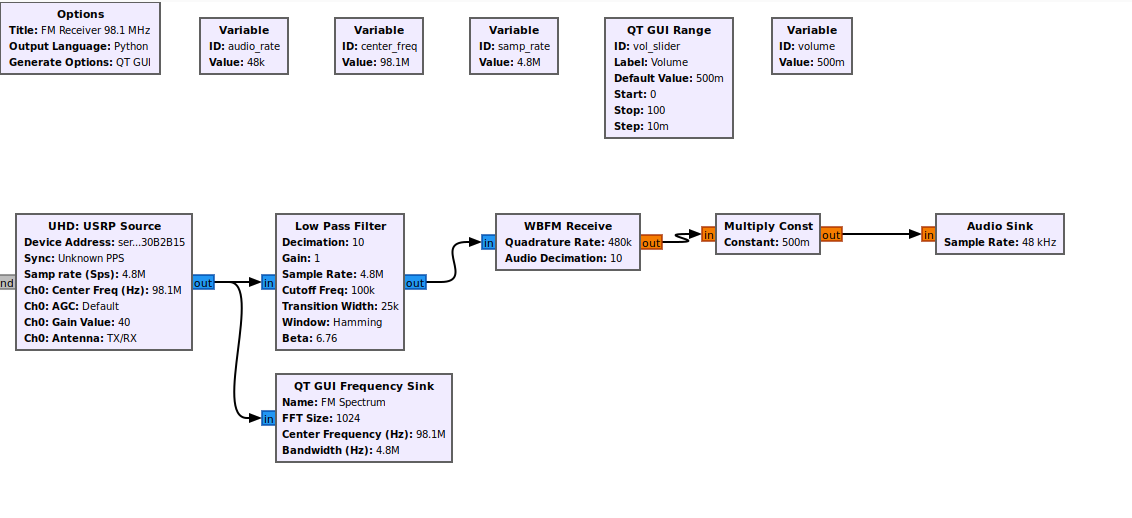
Figure 1: FM receiver flowgraph generated from the template and opened in GNU Radio Companion.
Building a flowgraph from scratch
Create a flowgraph, add blocks, connect them, validate, and save. The LLM searches the block database, configures parameters, and wires everything together. Saving auto-organizes the block layout.
User: Build a flowgraph that generates a 1 kHz sine wave at 32 kHz sample rate
      and displays it on a time sink, frequency sink, and waterfall

┌─ list_templates() ────────────────────────────────────────────┐
│ fm_receiver, spectrum_analyzer, bpsk_transceiver              │
└───────────────────────────────────────────────────────────────┘

AI Assistant: No matching template.

┌─ create_flowgraph(...) ───────────────────────────────────────┐
│ name: "1kHz Sine Displays"                                    │
└───────────────────────────────────────────────────────────────┘

┌─ search_blocks("time sink") ──────────────────────────────────┐
│ qtgui_time_sink_x                                             │
├─ search_blocks("frequency sink") ─────────────────────────────┤
│ qtgui_freq_sink_x                                             │
├─ search_blocks("waterfall sink") ─────────────────────────────┤
│ qtgui_waterfall_sink_x                                        │
└───────────────────────────────────────────────────────────────┘

┌─ add_block(...) ──────────────────────────────────────────────┐
│ block_id: "analog_sig_source_x"                               │
│ instance_name: "sig_source"                                   │
│ params: {"type":"float", "samp_rate":"32000",                 │
│          "freq":"1000", "waveform":"analog.GR_SIN_WAVE",      │
│          "amp":"1.0"}                                         │
└───────────────────────────────────────────────────────────────┘

┌─ add_block(...) ──────────────────────────────────────────────┐
│ block_id: "qtgui_time_sink_x"                                 │
│ instance_name: "time_sink"                                    │
│ params: {"type":"float", "name":"\"Time Domain\"",            │
│          "nconnections":"1"}                                  │
│          "nconnections":"1"}                                  │
│ set_parameter: srate = 32000                                  │
│ set_parameter: size  = 1024                                   │
└───────────────────────────────────────────────────────────────┘

┌─ add_block(...) ──────────────────────────────────────────────┐
│ block_id: "qtgui_freq_sink_x"                                 │
│ instance_name: "freq_sink"                                    │
│ params: {"type":"float", "name":"\"Frequency Domain\"",       │
│          "nconnections":"1"}                                  │
│ set_parameter: bw = 32000                                     │
└───────────────────────────────────────────────────────────────┘

┌─ add_block(...) ──────────────────────────────────────────────┐
│ block_id: "qtgui_waterfall_sink_x"                            │
│ instance_name: "waterfall_sink"                               │
│ params: {"type":"float", "name":"\"Waterfall\"",              │
│          "nconnections":"1"}                                  │
│ set_parameter: bw = 32000                                     │
└───────────────────────────────────────────────────────────────┘

AI Assistant: Now connect the signal source to all three sinks:

┌─ connect_blocks(...) ─────────────────────────────────────────┐
│ "sig_source" : 0 → "time_sink" : 0                            │
│ "sig_source" : 0 → "freq_sink" : 0                            │
│ "sig_source" : 0 → "waterfall_sink" : 0                       │
└───────────────────────────────────────────────────────────────┘

┌─ validate_flowgraph() ────────────────────────────────────────┐
│ valid: true                                                   │
│ errors: []                                                    │
└───────────────────────────────────────────────────────────────┘

┌─ save_flowgraph(...) ─────────────────────────────────────────┐
│ filepath: "/home/user/sine_displays.grc"                      │
└───────────────────────────────────────────────────────────────┘

AI assistant: Flowgraph saved to ~/sine_displays.grc:

  - Signal Source: 1 kHz sine wave, float, 32 kHz sample rate, amplitude 1.0
  - QT GUI Time Sink: 1024 points, 32 kHz
  - QT GUI Frequency Sink: 1024 FFT, 32 kHz bandwidth
  - QT GUI Waterfall Sink: 1024 FFT, 32 kHz bandwidth
  - Connections: sig_source → time_sink, sig_source → freq_sink,
                 sig_source → waterfall_sink
  - Validation: passed

  To run:
  gnuradio-companion ~/sine_displays.grc
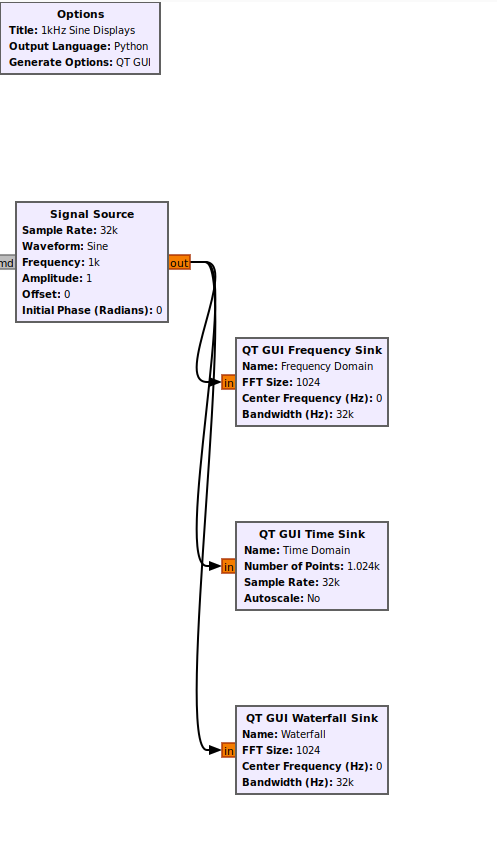
Figure 2: 1 kHz sine wave flowgraph built from scratch and opened in GNU Radio Companion.
Available Tools
The server registers tools across several categories. Use get_capabilities() for a full listing at runtime.
Hardware Detection
| Tool | Description |
|---|---|
detect_sdr_hardware |
Auto-detect connected SDR devices (UHD, SoapySDR, HackRF, RTL-SDR) |
get_setup_questions |
Get device-specific configuration questions for a detected SDR |
setup_hardware |
Configure SDR hardware for the session |
get_hardware_status |
Get current hardware configuration |
Discovery
| Tool | Description |
|---|---|
list_blocks |
List available GNU Radio blocks with optional category/search filter |
get_block_info |
Get detailed info about a block including parameters and ports |
search_blocks |
Search blocks by name, label, or description |
list_block_categories |
List all block categories |
System
| Tool | Description |
|---|---|
get_system_info |
Get GNU Radio version, available modules, and diagnostics |
get_capabilities |
List all server capabilities and tools |
Flowgraph Management
| Tool | Description |
|---|---|
create_flowgraph |
Create a new empty flowgraph |
load_flowgraph |
Load a flowgraph from a .grc file |
save_flowgraph |
Save flowgraph to a .grc file (auto-organizes layout by default) |
get_flowgraph_structure |
Get complete flowgraph structure (blocks, connections, variables) |
list_flowgraphs |
List all managed flowgraphs |
set_active_flowgraph |
Set the active flowgraph for operations |
Block and Connection Operations
| Tool | Description |
|---|---|
add_block |
Add a block to the flowgraph |
remove_block |
Remove a block from the flowgraph |
set_parameter |
Set a parameter value (supports expressions) |
connect_blocks |
Connect two blocks |
disconnect_blocks |
Disconnect two blocks |
check_connection_compatibility |
Pre-validate port type compatibility before connecting |
Validation and Code Generation
| Tool | Description |
|---|---|
validate_flowgraph |
Validate flowgraph for errors |
generate_python_code |
Generate executable Python code |
Layout
| Tool | Description |
|---|---|
organize_flowgraph_layout |
Auto-arrange blocks in a .grc file following signal flow |
Filter Design
| Tool | Description |
|---|---|
get_filter_info |
Get info about filter types, parameters, and typical values |
design_filter |
Design a filter and get tap coefficients |
RF Reference
| Tool | Description |
|---|---|
lookup_frequency_band |
Look up frequency band allocations and parameters |
get_modulation_info |
Get modulation scheme parameters and recommended GNU Radio blocks |
get_flowgraph_reference |
Get reference block chains for common SDR applications |
get_block_recipe |
Get full YAML recipe for a block (make templates, callbacks, etc.) |
Templates
| Tool | Description |
|---|---|
list_templates |
List available flowgraph templates |
instantiate_template |
Create flowgraph from template with parameter substitution |
Hierarchical Blocks
| Tool | Description |
|---|---|
create_hier_block |
Generate hierarchical block code |
export_hier_block |
Export hier block to Python file |
Diagnostics
| Tool | Description |
|---|---|
diagnose_flowgraph |
Diagnose flowgraph issues |
explain_error |
Explain error messages |
suggest_parameters |
Get parameter suggestions based on constraints |
Contributing
Contributions are welcome. See CONTRIBUTING.md for guidelines.
License
This project is licensed under the MIT License. See LICENSE for details.


