
Roblox MCP — MCP Server for Roblox Studio | AI Game Development with Claude, Codex, Cursor & Gemini
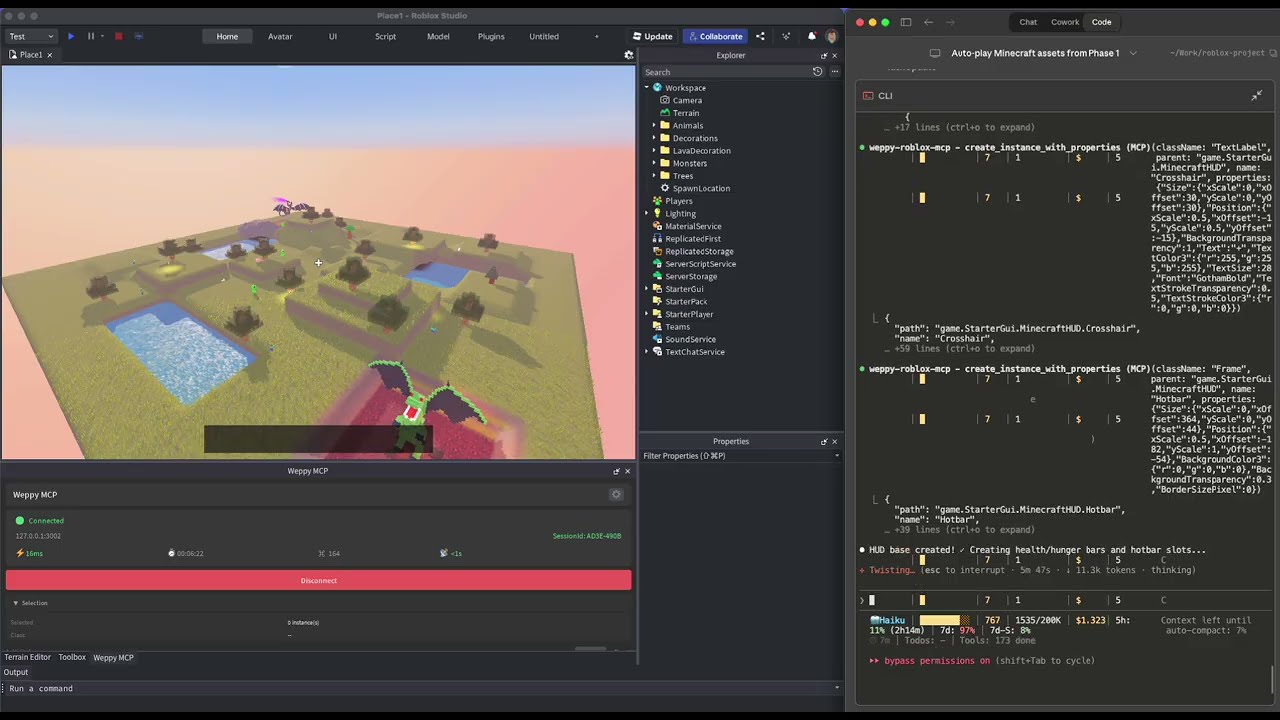
Weppy Roblox MCP is an MCP server that lets AI coding agents control a live Roblox Studio session — create and edit scripts, instances, terrain, lighting, assets, audio, and animations via natural language.
21 consolidated tools · 140+ actions · Bidirectional sync · Automated playtest · Multi-place support
English | 한국어 | 日本語 | Español | Português | Bahasa Indonesia
Why Weppy Roblox MCP?
AI coding agents like Claude, Codex, and Gemini are powerful — but they cannot see or modify anything inside Roblox Studio. The DataModel, scripts, terrain, and lighting are all invisible to external tools. Without a bridge, AI can only generate code snippets that you must paste manually.
Weppy Roblox MCP provides a real-time bridge between AI agents and the Roblox Studio DataModel. It exposes the full Roblox API surface as executable MCP tools, so AI can directly create, read, modify, and delete instances, scripts, properties, terrain, and more — inside a live Studio session.
This is not just code generation. It is executable, production-oriented actions running directly in Studio.
Quick Install (5 minutes)
Step 1 — Install the Roblox Studio plugin (bridge between Studio and AI):Plugin Installation Guide
Step 2 — Register the MCP server with your AI app:
npx -y @weppy/roblox-mcp
| AI App | Guide |
|---|---|
| Claude Code | Setup |
| Claude Desktop | Setup |
| Codex CLI | Setup |
| Codex Desktop | Setup |
| Gemini CLI | Setup |
| Antigravity | Setup |
Any MCP-compatible AI client works. The server command is
npx -y @weppy/roblox-mcp.
Compatibility
| Claude Code | Claude Desktop | Cursor | Codex CLI | Gemini CLI | Antigravity |
|---|---|---|---|---|---|
| ✅ | ✅ | ✅ | ✅ | ✅ | ✅ |
Requirements: Node.js 18+, Roblox Studio, Windows 10+ or macOS 12+
What It Does
1) MCP Tools: Direct execution in Studio from natural language
AI can directly handle scripts, instances, properties, terrain, lighting, assets, audio, and animation inside Studio.
- "Add particles + sound + cooldown when the player jumps."
- "Build a boss arena at map center and place collision-safe spawn points."
- "Change this module interface and update every dependent script."
- "Generate terrain with mountains and rivers, then place spawn points on flat areas."
- "Search the Creator Store for a sword model and insert it into StarterPack."
2) Sync: Keep full project context stable for AI
AI works from a synchronized local mirror, so multi-file updates stay consistent.
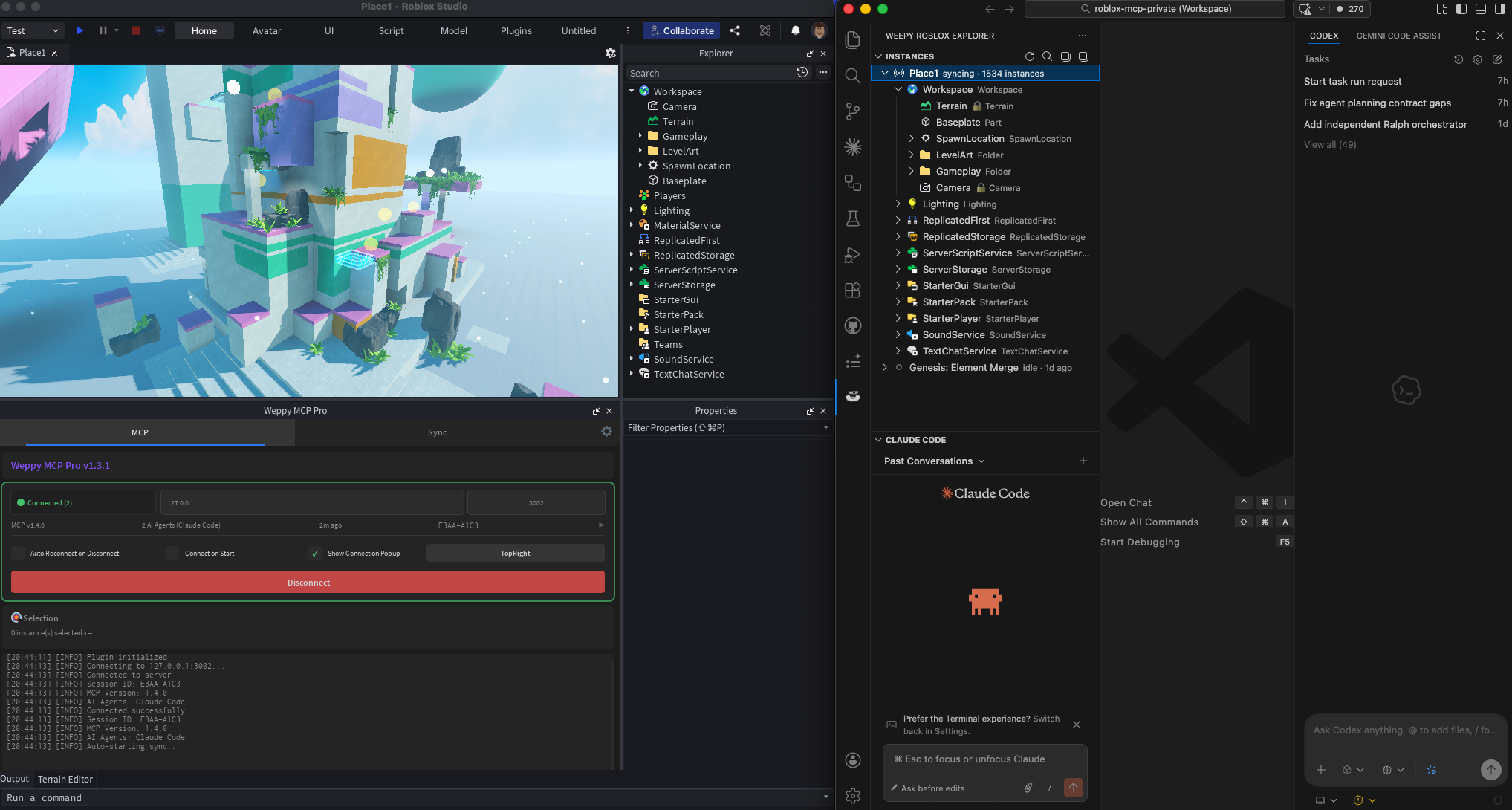
- Basic: one-way sync (Studio -> Local)
- Pro: bidirectional sync + per-type Direction/Apply Mode + history + multi-place
3) Playtest: Let AI run and verify tests automatically
AI can control Roblox Studio playtests directly. It can start and stop Play (F5) or Run (F8), inject test scripts, collect logs, and generate local reports automatically.
- "Start a Run-mode playtest and check whether the NPC reaches the target."
- "Write a test that verifies the SpawnLocation is above the ground and run it."
- "Validate that the script I just changed runs without errors in playtest."
4) Roblox Explorer: Browse Studio hierarchy in VSCode
View the full instance tree of your Roblox Studio place directly inside VSCode. Navigate services, open synced scripts and property files, and track sync status — all without switching to Studio.
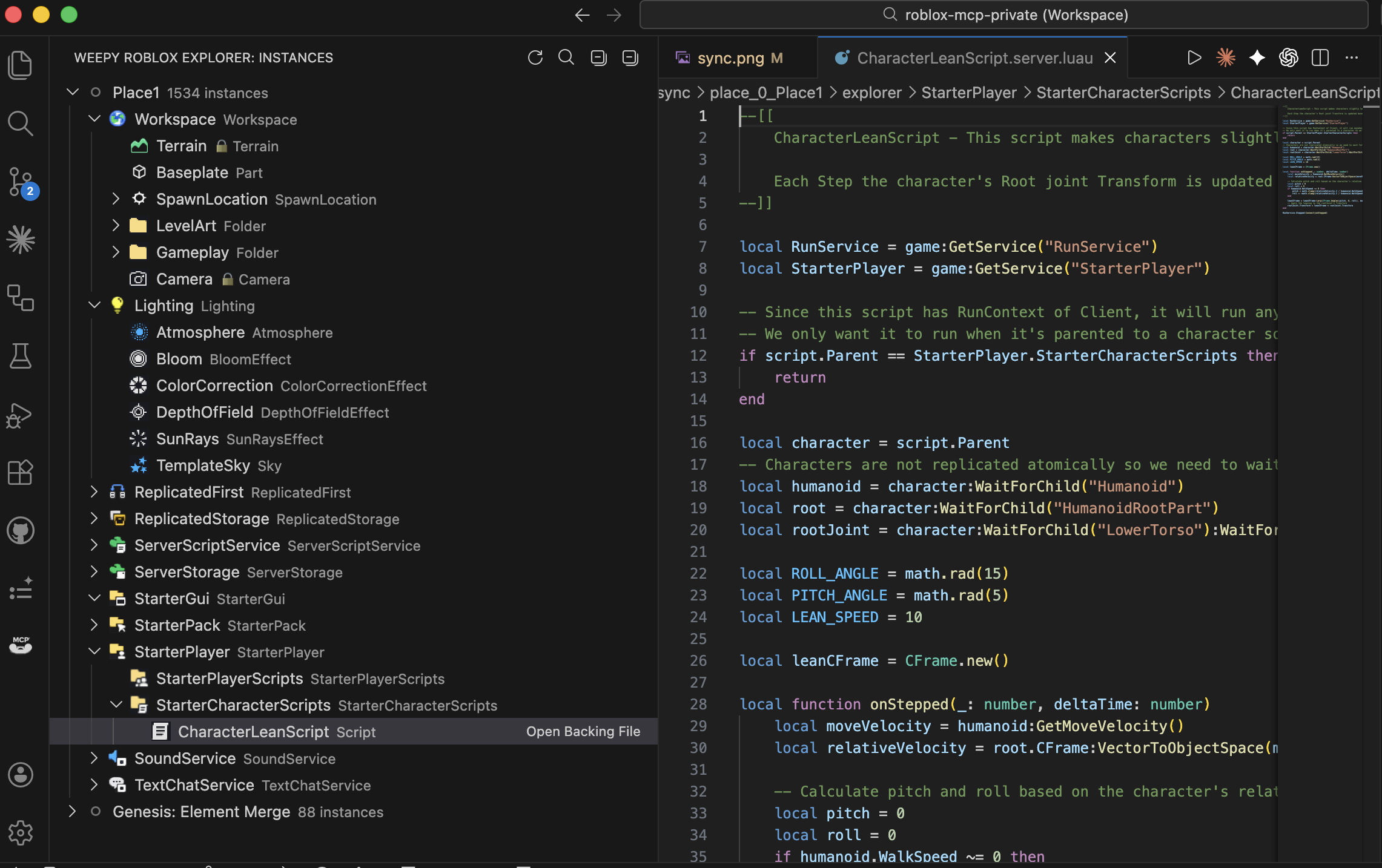
- Class icons matching Studio for instant recognition
- Click to open synced scripts and property files
- Multi-place support with sync status indicators
Use Cases
- Rapid prototyping: Describe a game mechanic in natural language and watch AI build it in Studio
- Bulk refactoring: Rename a module interface and update every dependent script in one request
- Terrain & environment: Generate procedural terrain, set lighting/atmosphere, place assets — all from a single prompt
- Multi-file consistency: AI reads the full project via Sync and applies changes across related scripts together
- Asset integration: Search the Creator Store, insert models, and configure properties without leaving your editor
Why It Matters
- Compress repetitive work: turn many manual edits into one request
- Change related files together: not just one target file
- Lower risk: rely on sync state and history before applying changes
- Better token efficiency (Pro): reduce round trips with bulk actions
Docs
- Installation Guide
- Tools Reference
- Sync Deep Dive
- Roblox Explorer (VSCode Extension)
- Compatibility
- Troubleshooting
Workflow Guides
- Instances & Properties - search, creation, editing, tags
- Scripting & Code Execution - script management and Luau execution
- World & Environment - lighting, terrain, camera
- Assets & Effects - asset insertion, tweening, effects
- Playtest & Automated Tests - playtest control and automated validation
- System & Debugging - connection, logs, batch execution
FAQ
How do I connect Claude Code to Roblox Studio?
Install the Roblox Studio plugin, then register the MCP server (npx -y @weppy/roblox-mcp) in Claude Code. Claude can then directly read and write scripts inside Studio. See Claude Code Setup.
How do I use Codex CLI with Roblox Studio?
Install the plugin, then add the MCP server config to Codex CLI. See Codex CLI Setup.
Does Roblox MCP work with Cursor?
Yes. Any MCP-compatible AI client works. Setup guides are provided for Claude Code, Claude Desktop, Cursor, Codex CLI, Codex Desktop, Gemini CLI, and Antigravity.
Can AI build Roblox games with this?
Yes. AI can create instances, write scripts, generate terrain, set up lighting, insert assets, configure physics, and more — all inside a live Roblox Studio session. It goes beyond code generation to executable actions.
What is the difference between Basic and Pro?
Basic (Free) includes MCP tool execution and one-way sync (Studio -> Local). Pro adds bidirectional sync, bulk operations, terrain generation, spatial analysis, audio/animation control, and multi-place support. See the Pro Upgrade Guide.
How is Weppy different from other Roblox MCP servers?
Weppy uses 21 consolidated tools with action-based dispatching (140+ actions) instead of separate tools for each function. This reduces AI token consumption significantly. It also provides bidirectional project sync and multi-place support, which most alternatives lack.
Is it safe? Can AI break my game?
The server runs on localhost only (127.0.0.1:3002). Forbidden paths (CoreGui, CorePackages) are blocked. Rate limiting (450 req/min) and 30-second timeouts prevent runaway operations. All changes are trackable via sync history.
Pro Upgrade
Bidirectional Sync, advanced build capabilities, and AI token efficiency — all in one upgrade.
Pro Upgrade Guide


