
MCP Test Utils
100% AI Code · Human Reviewed




MCP server for automated desktop UI testing. A single binary — no runtime, no dependencies, no installation.
Windows x64 only. macOS and Linux support is planned.
Gives AI agents eyes and hands: screenshots, window management, mouse, keyboard, UI Automation, OCR.
Why
AI agents can trigger actions in applications but can't see the screen. This server bridges that gap:
Agent triggers action → takes screenshot → sees the result →
switches window → clicks a button → verifies → writes report
Fully autonomous, no user involvement required.
Demo
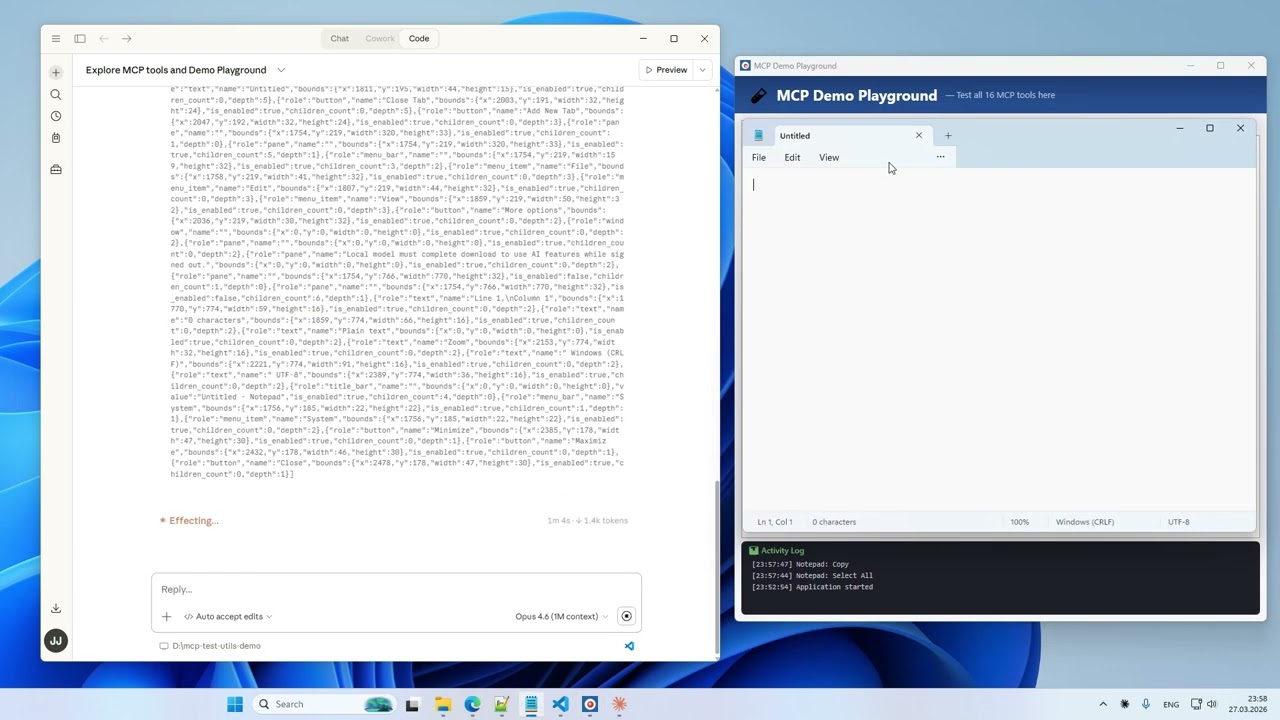
17 tools. 10 tasks. One take. Watch on YouTube →
Platforms
| Platform | Status |
|---|---|
| Windows x64 | ✅ Full support |
| macOS arm64 | ⏳ Planned |
| Linux x64 | ⏳ Planned |
Tools (17)
Vision
| Tool | Description |
|---|---|
take_screenshot |
Screenshot of the entire desktop with configurable quality |
take_window_screenshot |
Screenshot of a specific window (screen or window capture mode) |
read_screen_text |
OCR the entire screen (Windows.Media.Ocr) |
read_region_text |
OCR a screen region with precise word coordinates |
Window Management
| Tool | Description |
|---|---|
list_windows |
List windows with id, title, app, position, size, minimized, focused |
focus_window |
Bring a window to front, restore if minimized |
Input
| Tool | Description |
|---|---|
mouse_click |
Click (left / right / middle) at screen or window-relative coordinates |
mouse_move |
Move cursor to a point |
mouse_drag |
Drag from point A to point B |
mouse_scroll |
Scroll the mouse wheel |
keyboard_type |
Type text (full Unicode — Latin, Cyrillic, CJK, emoji) |
keyboard_press |
Press a key (Enter, Tab, F1–F12, arrows, etc.) |
keyboard_shortcut |
Key combinations (Ctrl+S, Alt+F4, Ctrl+Shift+P, etc.) |
Structured UI Access
| Tool | Description |
|---|---|
list_ui_elements |
UI Automation tree — buttons, fields, menus with exact coordinates |
Agent Guide
| Tool | Description |
|---|---|
get_usage_guide |
Compact workflow guide for LLM agents — precision clicking, coordinate metadata, quality tips |
Session Logging
| Tool | Description |
|---|---|
enable_logging |
Start recording tool calls to JSONL + screenshots (opt-in) |
disable_logging |
Stop recording, get session stats |
Installation
- Download the binary from Releases.
- Add it to your MCP client config. Example below is for Claude Desktop — for other clients, refer to their documentation.
Claude Desktop: %APPDATA%\Claude\claude_desktop_config.json
{
  "mcpServers": {
    "test-utils": {
      "command": "D:\\path\\to\\mcp-test-utils.exe"
    }
  }
}
- Restart Claude Desktop.
- In chat, try: "Take a screenshot" — the agent will return an image of your desktop.
With Logging (optional)
{
  "mcpServers": {
    "test-utils": {
      "command": "D:\\path\\to\\mcp-test-utils.exe",
      "env": {
        "MCP_LOG_DIR": "D:\\path\\to\\logs",
        "MCP_LOG_MAX_MB": "500",
        "MCP_LOG_RETAIN_DAYS": "30"
      }
    }
  }
}
Quality Presets
Screenshots support configurable quality to balance detail and token cost:
| Preset | Scale | Format | Use Case |
|---|---|---|---|
full |
100% | JPEG q90 | Maximum detail |
standard |
50% | JPEG q70 | Balanced (default) |
compact |
50% | PNG | When PNG is needed |
minimal |
25% | Grayscale | Lowest token cost |
custom |
10–100% | JPEG / PNG / Grayscale | Full control |
Environment Variables
| Variable | Description | Default |
|---|---|---|
MCP_LOG_DIR |
Path for log sessions. Without it, logging tools are hidden | — |
MCP_LOG_MAX_MB |
Session size limit (warning on exceed) | 500 |
MCP_LOG_RETAIN_DAYS |
Auto-delete sessions older than N days. 0 to disable |
30 |
How It Works
MCP Test Utils is a JSON-RPC 2.0 server communicating over stdin/stdout. Any MCP-compatible client launches the binary, sends tool calls, and receives structured responses (text, base64 images). Tested with Claude Desktop.
The server uses native Windows APIs directly — Win32 GDI for screenshots, SendInput for mouse and keyboard, UI Automation COM API for element inspection, WinRT Windows.Media.Ocr for text recognition. No PowerShell, no external tools, no network access.
Use Cases
- Automated QA — agent navigates the app, clicks through flows, takes screenshots at each step, writes a test report
- Desktop automation — fill forms, copy data between windows, run workflows
- Accessibility audit — scan UI Automation tree for missing labels or roles
- Visual regression — screenshot comparison across releases
- Data extraction — OCR text from applications that don't expose APIs
Security
- Responds only to requests from the MCP client
- Opens no network ports
- Writes nothing to disk (except opt-in logging)
- Sends no data externally
- Screenshots capture the entire screen — make sure no sensitive information is visible
Support
Free and unrestricted. If you find it useful — jeenyjai.github.io
License
Copyright 2026 JeenyJAI. All rights reserved.
🚀 Created with Claude


