
glovebox-mcp
A sandboxed computer-use MCP server — let an AI agent drive a real browser and desktop apps(mouse, keyboard, screenshots, vision grounding), confined to a nested X11 window so it cannever touch your real screen, files, or other apps.
Like a lab glovebox: the agent reaches in and manipulates real applications, sealed off fromeverything else. Bring the sandbox up, log into whatever sites or apps you want to automate insidethat window, and the agent operates only there — you can watch it live and close it instantly.
Speaks the Model Context Protocol, so it works with MCP clientslike Claude Code. Your host can run Wayland; the sandbox gives the agent a real X server to drive.
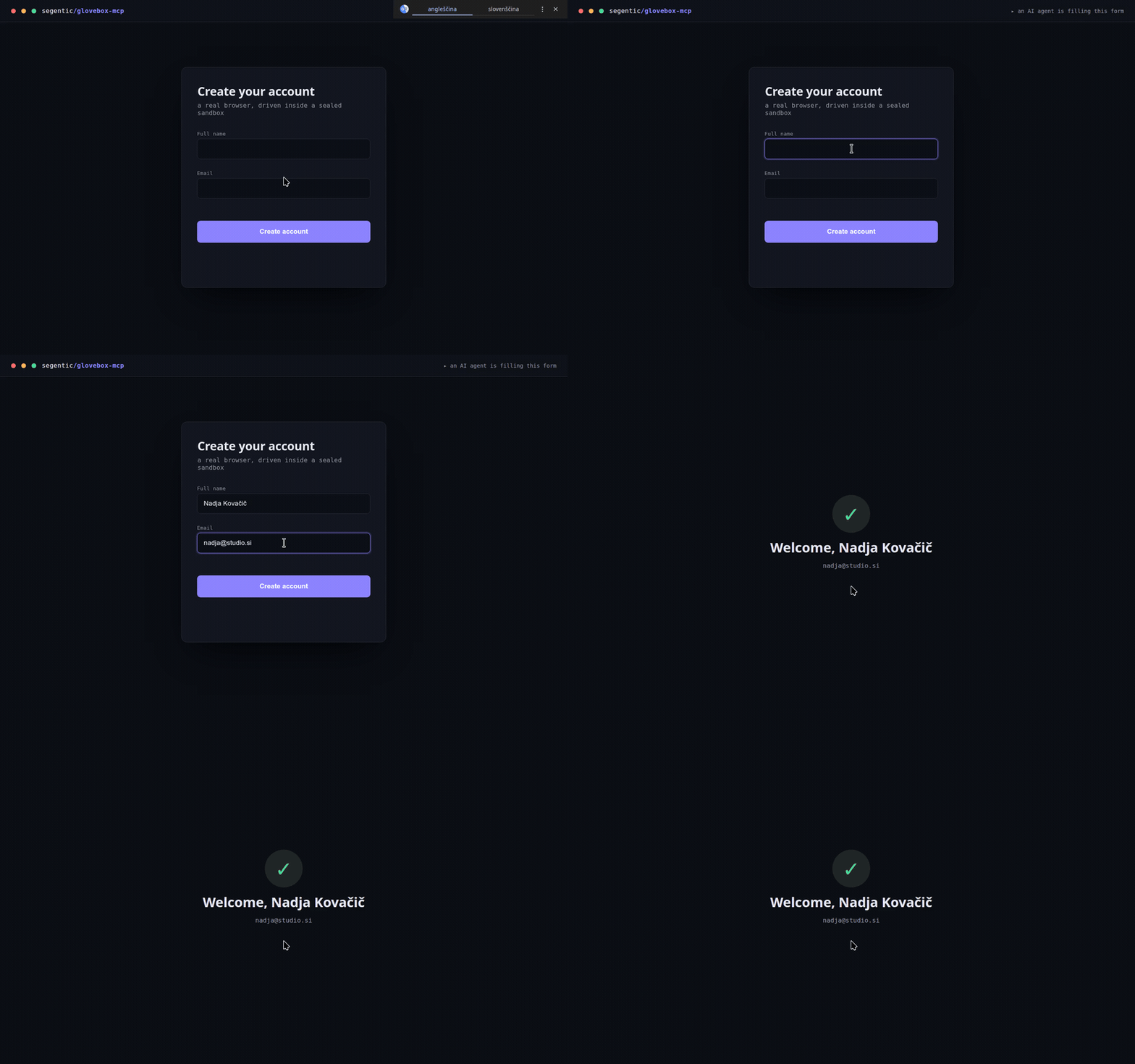
An agent driving a real browser in the sandbox — gliding the cursor, inserting a unicode name (Nadja Kovačič), typing, and submitting. All confined to a nested X11 window.
Why a nested X11 sandbox?
- Most desktop automation (xdotool, PyAutoGUI) is X11-only, but many modern desktops run Wayland.
- Xephyr provides a real X server inside a single window (
DISPLAY :1). Everything the agentdoes — clicks, typing, screenshots — is confined to that window, not your real desktop. - You stay in control: watch it live,
pkill Xephyrto close everything.
Requirements
- Linux — the sandbox nests a real X server (Xephyr), so it works even on Wayland hosts(via Xwayland). Not macOS/Windows. Developed on Ubuntu; any modern Linux with the packages below.
- Python 3.10+ and
uv(used for the virtualenv). - System packages —
xserver-xephyr(Xephyr),openbox,scrot,x11-utils,xdotool,wmctrl,xclip(+tesseract-ocrforbasic). On Debian/Ubuntu the installer auto-installsthem viaapt(sudo); on Fedora/Arch it prints the matchingdnf/pacmancommand. The MCP serveritself is distro-agnostic — any Linux with these tools works. - A browser in the sandbox (Chromium or Chrome).
- NVIDIA GPU (≥6 GB VRAM) — only for the
localvision mode.
Install
Pick a vision backend and run its one-liner (clone → install). Each one installs the system packages(auto via apt on Debian/Ubuntu) and the Python deps for that mode, and writes a ready-to-pastemcp-config.json with your paths.
none — no local models; your agent reads screenshots itself (lightest, instant):
git clone https://github.com/segentic-lab/glovebox-mcp && cd glovebox-mcp && ./install.sh none
basic — Tesseract OCR grounding (parse_screen → text + coordinates, CPU-only):
git clone https://github.com/segentic-lab/glovebox-mcp && cd glovebox-mcp && ./install.sh basic
local — OmniParser on an NVIDIA GPU (parse_screen → text + icons, pixel-precise; ~4 GB weights, ≥6 GB VRAM):
git clone https://github.com/segentic-lab/glovebox-mcp && cd glovebox-mcp && ./install.sh local
Your choice is written to .vision-mode (override per run with the GLOVEBOX_VISION env var).
Works with any MCP client / harness
Claude Code, Cursor, Codex, or your own agent — it's a standard MCP server, not tied to any one host.Two compatibility notes: basic/local return element coordinates as text, so they work evenwith text-only agents; none relies on the client passing the tool's screenshots to amultimodal model (fine for Claude Code, Cursor, and other image-capable MCP clients).
Quickstart
- Start the sandbox (leave it running):
Log into any sites or apps you want to automate in that window../start-display.sh # 1440×900 Xephyr window with a browser ./start-display.sh 1920x1080 # …or pass a screen size (or set $RES) - Register the server with your MCP client.
install.shalready wrotemcp-config.jsonwithyour real install path — copy itsgloveboxblock into your client's MCP config:
Restart the client so it loads the server.{ "mcpServers": { "glovebox": { "command": "/abs/path/to/glovebox-mcp/.venv/bin/python", // filled in by install.sh "args": ["/abs/path/to/glovebox-mcp/server.py"], "env": { "DISPLAY": ":1" } } } } - Ask the agent to screenshot / click / type — it operates only on the
:1window.
Driving it with an AI agent? Paste
AGENTS.mdinto the agent's system prompt — itteaches the observe → act → verify loop, grounding, the upload/unicode gotchas, and when to stop.
Tools
| Tool | What |
|---|---|
parse_screen() |
Vision grounding → JSON of every element (id, type, label, interactive, pixel-center) + a numbered Set-of-Mark image at /tmp/glovebox_annotated.png. (local mode: OmniParser on GPU, ~2 s.) |
click_element(id) |
Click an element from the last parse_screen (no coordinate guessing). |
screenshot() |
Screenshot of an instance. |
click(x,y) · move_mouse · scroll · drag · double_click |
Pointer ops. |
type_text(text) |
Unicode-safe typing (ASCII via xdotool; anything with č/š/ž… is inserted via the clipboard, because xdotool's synthetic unicode is silently dropped by some GTK apps). |
press_keys("ctrl+a"/"Return"/…) |
Keys/combos (xdotool syntax). |
upload_file(filepath, selector?) |
Attach a local file to a page's <input type=file> via the Chrome DevTools Protocol. The nested X11 file picker is invisible to automation and hangs the renderer, so use this for all uploads — never click an upload button expecting a dialog. Works on Chromium started by launch_app/start-display.sh (they open a per-instance --remote-debugging-port, 9222+N). Browser file inputs only — for native apps see open_file. |
open_file(filepath, app?) |
Open a local file in a native app on the instance's display (e.g. app="gimp") or via xdg-open. GTK apps get the same X11/D-Bus handling as launch_app. |
list_files() |
The instance's staging folder files/<N>/ (under the install dir) + its contents. |
launch_app(command, name?, size?) · list_instances() · close_instance(n) |
Multi-instance control (see below). |
wait_ms(ms) · get_screen_size() |
Timing / sandbox size. |
Every control tool takes instance=N and optional observe / settle_ms (see below).In local mode OmniParser is lazy-loaded on first parse_screen (~6 s once, then ~2 s/parse).
Vision backend (selectable)
GLOVEBOX_VISION env var, or the .vision-mode file, or default local:
| Mode | parse_screen |
Needs | When |
|---|---|---|---|
none |
disabled (returns a note) — use screenshot() + reason |
nothing (mcp, mss, xdotool) | lightest; let the agent's own vision do grounding |
basic |
Tesseract OCR → text elements + coords | tesseract-ocr + pytesseract |
no GPU; text-only grounding |
local |
OmniParser → text + icons + coords | torch + CUDA + OmniParser weights | best grounding |
Switch anytime with ./install.sh <mode> (installs only what that mode needs).
Multi-instance (a fleet of app windows)
Every control tool takes instance=N (default 1 = the start-display.sh sandbox). Spin up more —each its own Xephyr display/window on the host desktop:
launch_app(command, name?, size?)→ starts the next free:Nrunning any GUI app(chromium,gimp,inkscape,xterm, …). Chromium auto-gets X11 flags, a per-instance profile,a remote-debugging port, and D-Bus isolation. Returns the instance id.list_instances()·close_instance(n).
Because each display has its own cursor, multiple agents can drive different instances in parallel —one window each. The only shared resource is the GPU for local-mode parse_screen (it just queues).The host display for new windows is GLOVEBOX_HOST_DISPLAY (default :0); XAUTHORITY is auto-discovered.
One-call action + observe
click · click_element · type_text · press_keys · scroll · drag · double_click takeobserve (none default · screenshot · parse) and settle_ms. With observe="screenshot"the action returns its result and the resulting screen in a single call (with settle_ms to let thepage update first) — no separate screenshot round-trip. Default none keeps routine steps cheap; optinto screenshot/parse on the steps that change the page (navigations, submits).
Files & uploads
Each instance gets a staging folder files/<N>/ inside the install dir — a stable place to dropfiles for that instance (readable by native apps and, since it's under $HOME, by snap Chromium too).list_files(instance) shows the folder and its contents.
- Browser
<input type=file>→upload_file(path, instance)(via CDP). The nested filepicker is invisible to automation and hangs snap Chromium, so never click an upload button expectinga dialog. - Native apps (GIMP, Inkscape, editors) →
open_file(path, instance, app="gimp"), or justdrive the app's own Open dialog — unlike the browser's, it's a real visible window you can type apath into (Ctrl+Lin a GTK file chooser). - Saving / downloads → apps run as your user, so they can save anywhere you can write.
launch_appChromium instances are pre-configured to download and "save as" intofiles/<N>/; point nativeapps' Save dialogs there too, thenlist_files(instance)to see the results.
Maintenance (local mode)
install.sh clones OmniParser, downloads the v2 weights, andapplies two patches automatically:
- PaddleOCR made optional (this uses easyocr):
OmniParser/util/utils.py'sfrom paddleocr import PaddleOCRis wrapped in try/except and the module-levelpaddle_ocr = PaddleOCR(...)is guarded with… if PaddleOCR is not None else None. transformersis pinned to 4.49.0 — newer releases break Florence-2's remote config.
If you upgrade OmniParser manually, re-apply the PaddleOCR patch. Weights live in OmniParser/weights/.
Stop
pkill Xephyr # closes the sandbox (browser + WM + display)
Safety
- The agent's input and vision are scoped to the sandbox display — it does not see or control your real desktop.
- The server process runs as your user (shell/file access, like any MCP server); only its GUI control issandboxed to the Xephyr window. For OS-level isolation from your files, run it inside a VM or container.
- You can watch everything live and close it instantly with
pkill Xephyr. - Automate responsibly — only sites and services you are authorized to use.
Files
server.py— the MCP server (all tools).install.sh— mode-aware installer (none/basic/local).start-display.sh— launches the Xephyr sandbox (display + window manager + browser).AGENTS.md— drop-in tool-usage instructions for the AI agent (paste into its system prompt).mcp-config.json— a ready-to-paste MCP client config snippet.
Credits
local vision mode uses Microsoft's OmniParser(cloned and weights downloaded by install.sh, under its own license). Screen capture usesmss; input is driven withxdotool. Not affiliated with Microsoft.
Contributing
Shipped as-is under MIT. Issues and PRs are welcome, but this is maintained by one person —no support or response time is guaranteed. If it's useful to you, a ⭐ helps.
License
MIT — see LICENSE.


