
Spring AI Playground
Spring AI Playground is a self-hosted web UI platform for building low-code tools and dynamically exposing them via built-in MCP server for AI agents.
Unlike most AI playgrounds that focus solely on prompt testing and chat visualization, it bridges the gap between static AI conversations and real-world actions by enabling you to create executable tools that AI agents can use.
It brings together Large Language Models (LLMs), Retrieval-Augmented Generation (RAG), and low-code tool development in a single environment. Tools created in the Tool Studio are dynamically evaluated and loaded at runtime, then automatically registered and exposed as Model Context Protocol (MCP) tools. This makes them instantly available to MCP-compatible clients without restarting or redeploying.
Agentic Chat Demo Tool-enabled agentic AI built with Spring AI and MCP
Key Capabilities
Tool Studio & Built-in MCP Server
Create AI tools using JavaScript (ECMAScript 2023) directly in the browser. Powered by GraalVM Polyglot, these tools run inside the JVM (Polyglot) with configurable security constraints and are immediately exposed via built-in MCP Server. Experience a no-restart, no-redeploy workflow: just write, test, and publish.
MCP Server & Tool Inspection
Connect to external MCP servers, inspect available tools, and validate tool execution behavior. Test both your custom Tool Studio tools and third-party MCP services in a unified interface.
Vector Database & RAG Pipeline
Upload documents, configure chunking and embeddings, and test retrieval pipelines. Evaluate prompt execution against selected RAG sources to validate knowledge-grounded responses.
Agentic Chat & Agent Workflow
Interact with LLMs in a chat interface where models can reason, select tools, and execute actions. Combine MCP tools and RAG-enhanced context to validate end-to-end agent workflows.
Why Spring AI Playground?
- Dynamic MCP Hosting: Build and expose tools in real-time with immediate MCP server exposure and no deployment overhead.
- Unified Testing Hub: Validate prompts, RAG pipelines, and agentic workflows in a single, cohesive environment.
- Provider Agnostic: Switch between Ollama, OpenAI, and other LLM providers (including OpenAI-compatible APIs) with ease.
- Built for Modern AI: Designed specifically for the Spring AI ecosystem, MCP protocol, and agent-oriented architectures.
Table of Contents
- Overview
- Key Capabilities
- Tool Studio & Built-in MCP Server
- MCP Server & Tool Inspection
- Vector Database & RAG Pipeline
- Agentic Chat & Agent Workflow
- Why Spring AI Playground?
- Quick Start
- Prerequisites
- Getting Started
- Running the Application
- Running with Docker (Recommended)
- Cleaning Up Docker
- Running Locally (Optional)
- PWA Installation
- Configuration
- AI Models
- Supported Model Providers
- Configuring Ollama Models
- Using OpenAI
- OpenAI-Compatible Servers
- Tool Studio
- Built-in MCP Server
- Dynamic Tool Registration
- JavaScript Runtime
- Low-code Tool Development Workflow
- Pre-built Example Tools
- Using Tools in Agentic Chat
- Connecting External MCP Clients
- MCP Playground
- Key Features
- Getting Started with MCP
- Vector Database
- Supported Vector Databases
- Vector Database Playground Features
- Agentic Chat
- Two Integrated Paradigms
- RAG: Chain-based Workflow
- MCP: Agentic Reasoning
- Workflow Integration
- Model Requirements for Agentic Reasoning
- Agentic Chat Architecture Overview
- Two Integrated Paradigms
- Upcoming Features
- Advanced Agentic Tooling (Capability Factory)
- Infrastructure & Enterprise Features
Quick Start
Prerequisites
- Java 21 or later installed (required for building the project).
- Ollama running on your machine (refer to AI Models).
- Docker installed and running on your machine. (only if you choose to run the application using Docker)
Getting Started
First, clone the Spring AI Playground project from GitHub:
git clone https://github.com/spring-ai-community/spring-ai-playground.git
cd spring-ai-playground
Running the Application
Running with Docker (Recommended)
- Build the Docker Image:
./mvnw spring-boot:build-image -Pproduction -DskipTests=true \ -Dspring-boot.build-image.imageName=jmlab/spring-ai-playground:latest - Run the Docker Container:
docker run -d -p 8282:8282 --name spring-ai-playground \ -e SPRING_AI_OLLAMA_BASE_URL=http://host.docker.internal:11434 \ -v spring-ai-playground:/home \ --restart unless-stopped \ jmlab/spring-ai-playground:latest - Access the Application:Open http://localhost:8282 in your browser.
Notes:
- Data Persistence: Application data is stored in the spring-ai-playground Docker volume, ensuring data persists even if the container is removed.
- Ollama Connection: The environment variable SPRING_AI_OLLAMA_BASE_URL is set to http://host.docker.internal:11434. Adjust the URL if Ollama runs on a different host or port.
- Automatic Restart: The --restart unless-stopped option ensures the container restarts automatically unless manually stopped with docker stop.
- For Linux Users: The
host.docker.internalDNS name may not be available on all Linux distributions. If you encounter connection issues, you may need to use--network="host"in yourdocker runcommand or replacehost.docker.internalwith your host machine's IP address on the Docker bridge network (e.g.,172.17.0.1).
⚠️ MCP STDIO Transport Limitation While Docker is recommended for most scenarios, it is not suitable for testing MCP STDIO transport. MCP STDIO transport requires direct process-to-process communication, which containerized environments cannot provide reliably.
If you plan to test the MCP STDIO transport, please use the Running Locally (Optional) instead.
Cleaning Up Docker
- To stop and remove the Docker container, image, and volume:
docker stop spring-ai-playground
docker rm spring-ai-playground
docker rmi jmlab/spring-ai-playground:latest
docker volume rm spring-ai-playground
Running Locally (Optional)
- Build and Run the Application:
./mvnw clean install -Pproduction -DskipTests=true ./mvnw spring-boot:run - Access the Application:Open
http://localhost:8282in your browser.
PWA Installation
Note: Complete either the Docker or Local installation steps above before proceeding with PWA installation.
Spring AI Playground comes with Progressive Web App (PWA) capabilities, allowing you to install it as a standalone application on your device for a native app-like experience.
Installing as PWA
- Open the application in your web browser at
http://localhost:8282 - Install using one of the following methods:
- Browser PWA Install Popup: Most modern browsers will automatically show a PWA installation popup or prompt in the address bar
- Install PWA Button: Look for the "Install PWA" button on the application's home page and click it
- Follow the installation wizard to complete the setup and add the app to your device
Auto-configuration
Spring AI Playground uses Ollama by default for local LLM and embedding models. No API keys arerequired, which makes it easy to get started.
AI Models
To enable Ollama, ensure it is installed and running on your system. Refer to the Spring AI Ollama Chat Prerequisites for setup details.
Support for Major AI Model Providers
Spring AI Playground supports major AI model providers through Spring AI integrations, including Anthropic, OpenAI, Microsoft, Amazon, Google, and Ollama. For more details on the available implementations, visit the Spring AI Chat Models Reference Documentation.
Selecting and Configuring Ollama Models
When running Spring AI Playground with the ollama profile, you can configure the default chat and embedding models, as well as the list of available models in the playground UI, by updating your configuration file (application.yaml).
Notes:
pull-model-strategy: when_missingensures that the configured models are automatically pulled from Ollama if they are not already available locally.playground.chat.modelscontrols which models appear in the model selection dropdown in the web UI.- Changing the
chat.options.modelorembedding.options.modelhere updates the defaults used by the application.
Pre‑pull Recommended Ollama Models to avoid delays when first using a model, pre-pull it with Ollama before starting Spring AI Playground.
Switching to OpenAI
Switching to OpenAI is a primary example of how you can use a different AI model with Spring AI Playground. To explore other models supported by Spring AI, learn more in the Spring AI Documentation.
By default, Spring AI Playground uses Ollama as the primary AI model provider. To switch to OpenAI at runtime (without modifying files like pom.xml or application.yaml), activate the openai profile and provide the API key via environment variables.
To switch to OpenAI, follow these steps:
Activate the OpenAI Profile at Runtime:
- Specify
--spring.profiles.active=openaiwhen running the application. This overrides the default Ollama profile.
- Specify
Provide OpenAI API Key via Environment Variable:
- The default
application.yamluses${OPENAI_API_KEY}as a placeholder for the API key. - Set the environment variable before running:
- Unix/Mac:
export OPENAI_API_KEY=your-openai-api-key- Windows:
set OPENAI_API_KEY=your-openai-api-key - Alternatively, pass it directly in the run command (overrides env var if set).
- The default
Run the Application with OpenAI Settings:
- For Docker run (combine profile and API key):
docker run -d -p 8282:8282 --name spring-ai-playground \ -e SPRING_PROFILES_ACTIVE=openai \ -e OPENAI_API_KEY=your-openai-api-key \ -e SPRING_AI_OLLAMA_BASE_URL=http://host.docker.internal:11434 \ # Optional for hybrid use -v spring-ai-playground:/home \ --restart unless-stopped \ jmlab/spring-ai-playground:latest - For local run (using Maven, combine profile and API key):
./mvnw spring-boot:run --spring.profiles.active=openai --spring.ai.openai.api-key=your-openai-api-key
- For Docker run (combine profile and API key):
Switching to OpenAI-Compatible Servers
You can connect Spring AI to OpenAI-compatible servers such as llama.cpp, TabbyAPI, LM Studio, vLLM, Ollama, or others that expose OpenAI-compatible endpoints (e.g., /v1/chat/completions) by configuring the following properties in application.yml or via environment variables/run arguments. This leverages Spring AI's OpenAI Chat Client, which supports seamless integration with these servers.
# Quick Start Example - Ollama as OpenAI-compatible server
spring:
  ai:
    openai:
      api-key: "not-used"  # No auth required for local Ollama
      base-url: "http://localhost:11434/v1"
      chat:
        options:
          model: "llama3.2"

# For more examples (llama.cpp, TabbyAPI, LM Studio, vLLM),
# see the detailed configuration section below.
Configuration Details:
api-key: Required by Spring AI for all requests. Use a real key if server authentication is enabled (e.g., TabbyAPI). For unauthenticated servers (e.g., local llama.cpp, Ollama), a placeholder like "not-used" works. Supports environment variables for security (e.g.,${OPENAI_API_KEY}or set viaexport OPENAI_API_KEY=your-key).base-url: Points to the server's root endpoint. Include /v1 if your server requires it (e.g., Ollama often uses http://localhost:11434/v1). Spring AI appends paths like /chat/completions automatically. Test withcurl <base-url>/v1/modelsto verify.model: Must exactly match the model name registered on the server (e.g., "meta-llama/Llama-3-8B-Instruct" for vLLM). Use the server's /models endpoint to list available models.completions-path: Override only if the server deviates from the OpenAI standard (default: "/v1/chat/completions"). Most compatible servers adhere to this.extra-body: Key for passing non-standard parameters (e.g., sampling controls liketop_k,repetition_penalty,num_predict). Ignored by official OpenAI but essential for servers like vLLM or Ollama.http-headers: Optional for custom authentication headers (e.g., overriding API key with Bearer token).- Streaming Support: Automatically enabled if the server supports Server-Sent Events (SSE). Use
StreamingChatModelin code for flux responses. Most compatible servers (e.g., llama.cpp, Ollama) support this. - Other Options: For max tokens, use
maxTokens(non-reasoning models) ormaxCompletionTokens(reasoning models like o1 or deepseek-reasoner); avoid setting both.
Server-Specific Examples:
llama.cpp server:
spring:
  ai:
    openai:
      api-key: "not-used"  # No auth typically required
      base-url: "http://localhost:8080/v1"  # Include /v1 if server exposes it
      chat:
        options:
          model: "your-model-name"  # e.g., llama3
          extra-body:  # Optional server-specific params
            top_k: 40
            repetition_penalty: 1.1
TabbyAPI:
spring:
  ai:
    openai:
      api-key: "your-tabby-key"  # Use real key if auth enabled in TabbyAPI
      base-url: "http://localhost:5000/v1"  # Adjust port/path as per setup
      chat:
        options:
          model: "your-exllama-model"  # e.g., mistral
          extra-body:  # Tabby-specific if needed
            top_p: 0.95
LM Studio:
spring:
  ai:
    openai:
      api-key: "not-used"  # Typically no auth
      base-url: "http://localhost:1234/v1"  # Default LM Studio port with /v1
      chat:
        options:
          model: "your-loaded-model"  # e.g., phi3
          extra-body:  # Optional
            num_predict: 100
Ollama (Additional Example):
spring:
  ai:
    openai:
      api-key: "not-used"  # Optional; Ollama often doesn't require
      base-url: "http://localhost:11434/v1"  # Standard Ollama endpoint
      chat:
        options:
          model: "llama3.2"  # Match Ollama model name
          extra-body:
            num_predict: 200
            top_k: 40
vLLM (Additional Example):
spring:
  ai:
    openai:
      api-key: "not-used"
      base-url: "http://localhost:8000/v1"  # vLLM default
      chat:
        options:
          model: "meta-llama/Llama-3-8B-Instruct"
          extra-body:
            top_p: 0.95
            repetition_penalty: 1.1
Note:Ensure your server fully adheres to OpenAI’s API specification for best compatibility, including support for
/v1/chat/completionsand proper model listing at/v1/models. Verify server capabilities with tools like curl (e.g.,curl http://localhost:8080/v1/models). Streaming works if the server supports SSE. For production, use environment variables for secrets. Refer to Spring AI OpenAI Chat Documentation for full details on advanced options likestream-usageor reasoning model support. Test connectivity before integrating.
Tool Studio

Spring AI Playground's Tool Studio is a low-code tool development interface where you can create, test, and publish AI-callable tools using JavaScript.Tools created in Tool Studio are dynamically evaluated at runtime and automatically exposed as MCP (Model Context Protocol) tools via the built-in MCP server—no restart or redeploy required.
Built-in MCP Server
Spring AI Playground runs a built-in MCP server automatically on startup.
- Endpoint:
http://localhost:8282/mcp - Type: Streamable MCP endpoint (HTTP)
- Default server:
spring-ai-playground-tool-mcp
Note: Since the Playground itself acts as an MCP host, external MCP-compatible clients can connect directly to this endpoint and consume your tools.
Dynamic Tool Registration
Tool Studio is tightly integrated with the built-in MCP server.
- When you create/update a tool in Tool Studio, it is automatically registered to the default MCP server
spring-ai-playground-tool-mcp. - Registered tools are visible under the MCP Server menu, where you can validate schemas and execution using the Tool Inspector.
- This creates a zero-deployment workflow: write → test → publish immediately.
JavaScript Runtime
Tool actions are implemented in JavaScript (ECMAScript 2023) executed inside the JVM (GraalVM Polyglot runtime).
- Runtime: JavaScript (ECMAScript 2023) inside the JVM (polyglot).
- Java interop: Controlled via whitelist and configuration.
- Sandboxing: Unsafe operations (file I/O, native access, etc.) are restricted by design; tool code should be kept minimal and deterministic.
Security Note: Host access is strictly controlled to ensure safe execution. By default, all broad access is disabled, and only explicitly allowed Java classes and capabilities are exposed. Configuration is done via
application.yml:js-sandbox: allow-network-io: true # Allows network access (required for API calls in tools) allow-file-io: false # Blocks file system access for enhanced security allow-native-access: false # Disables native code access allow-create-thread: false # Prevents thread creation max-statements: 500000 # Prevents infinite loops and DoS attacks allow-classes: # Whitelist-based class access # Completely safe core packages — strongly recommended to allow entirely - java.lang.* # String, StringBuilder, System.getProperty, etc. (basic utilities) - java.math.* # BigDecimal, BigInteger, etc. (mathematical calculations) - java.time.* # Instant, Duration, ZonedDateTime, etc. (date/time handling) - java.util.* # List, Map, Set, UUID, Base64, Collections, etc. (collections and utilities) - java.text.* # DateFormat, NumberFormat, etc. (formatting utilities) # Networking — core functionality of Tool Studio - java.net.* # URL, HttpURLConnection, URI, URLEncoder, etc. # I/O streams — used for handling network responses (safe because allow-file-io: false blocks file access) - java.io.* # Modern HTTP client - java.net.http.HttpClient - java.net.http.HttpRequest - java.net.http.HttpResponse - java.net.http.HttpHeaders # HTML parsing library — currently used in examples - org.jsoup.*This configuration balances functionality (e.g., network calls required for tools) with security. For stricter environments, you may consider enabling GraalVM's
SandboxPolicy.CONSTRAINEDdirectly in code for additional automatic restrictions. See the GraalVM Security Guide for advanced options.
Key Features
![toolbox]() Tool MCP Server Setting (Expose tools via MCP):
Tool MCP Server Setting (Expose tools via MCP):- Enable Auto-Add Tools: Toggle whether tools created/updated in Tool Studio are automatically exposed via the built-in MCP server.
- Registered Tools: Choose which tools from the Tool List are currently exposed; the exposed set is updatedautomatically as you change the selection.
- Recommended usage: keep many tools in your workspace, but expose only a controlled subset to MCP clients.
![file-code]() View Tool Specification (JSON):
View Tool Specification (JSON):- Display the current tool specification in JSON format (metadata + parameter schema).
- Useful for validating what will be published/consumed and for debugging schema/argument mismatches.
![copy-o]() Copy to New Tool (Template workflow):
Copy to New Tool (Template workflow):- Create a new tool by cloning the current tool definition and implementation.
- Recommended workflow: duplicate built-in example tools and adapt them, instead of starting from a blank tool.
Tool list & selection:
- Browse existing tools and load them into the editor for editing/testing.
- Built-in tools can serve as references (e.g.,
sendSlackMessage,openaiResponseGenerator,googlePseSearch,getWeather,buildGoogleCalendarCreateLink,getCurrentTime,extractPageContent).
Tool metadata:
- Edit Tool Name and Tool Description to define a stable tool-call identifier and an agent-friendly explanation.
- Naming guidance:
- Prefer verbs (
sendSlackMessage,extractPageContent). - Keep names stable once referenced by agents/workflows.
- Prefer verbs (
Structured parameters:
- Define the tool’s input schema (what the LLM will pass at call time):
- Required flag
- Name / Type (e.g.,
STRING) / Description - Test value for quick iteration
- Use multiple parameters for more deterministic tool calls (avoid “one big prompt string” when possible).
- Define the tool’s input schema (what the LLM will pass at call time):
Static variables:
- Define key/value variables that are injected into the action context.
- Support environment indirection (e.g.,
${ENV_VAR}) to avoid hardcoding secrets. - Typical usage: API keys, base URLs, workspace IDs, model/provider toggles.
JavaScript action development (ECMAScript 2023 inside the JVM):
- Implement tool logic in JavaScript executed inside the JVM (polyglot runtime).
- Return a JSON-serializable object; this becomes the tool output consumed by agents.
- Keep actions small and deterministic; use explicit error handling and structured outputs.
Integrated testing & debugging:
- Execute instantly with Test Run (using the parameter test values).
- Inspect status/timing/result in the Debug Console.
- Publish changes with Test & Update Tool so the tool definition is updated and MCP exposure settings can apply immediately.
 Tool MCP Server Setting (Expose tools via MCP):
 View Tool Specification (JSON):
 Copy to New Tool (Template workflow):
Low-code Tool Development Workflow
Open Tool Studio
- Navigate to
Tool Studioin the top menu.
- Navigate to
Define tool
- Tool Name: Use letters/numbers/underscore; must start with a letter.
- Tool Description: Describe the intent clearly for agent/tool selection.
- Add parameters
- Add one or more parameters with name/type/description.
- Mark required inputs and set Test Value for fast iteration.
- Add static variables (optional)
- Provide configuration values (e.g., API tokens).
- Prefer environment indirection (e.g.,
${ENV_VAR}) for secrets.
- Write action code (JavaScript)
- Implement the tool logic in the JS editor.
- Return a JSON-serializable object as the tool output.
- Test
- Click Test Run and debugging:
- Console Log : using
console.log() - Status: Success/Failure
- Elapsed time
- Result payload
- Console Log : using
- Click Test Run and debugging:
Publish (dynamic registration)
- Click Test & Update Tool to save.
- The tool becomes immediately available on
spring-ai-playground-tool-mcpwithout restart.
Pre-built Example Tools
Tool Studio includes pre-built tools you can use as reference implementations (and as templates via the copy-to-new-tool workflow).
Note: Some examples require environment variables (or static variables mapped to env values) before they can run successfully.
googlePseSearch- Search the web using Google Programmable Search Engine (PSE).- Requires:
${GOOGLE_API_KEY},${PSE_ID}
- Requires:
extractPageContent- Extracts and cleans the main textual content from a given web page URL by removing ads, navigation, scripts, and other unnecessary elements.buildGoogleCalendarCreateLink- Builds a Google Calendar "Add Event" URL with prefilled fields. The tool onlygenerates a URL; the user must open it and click "Save" in Google Calendar.sendSlackMessage- Send messages to Slack channels using an Incoming Webhook URL.- Requires:
${SLACK_WEBHOOK_URL}
- Requires:
openaiResponseGenerator- Generate AI responses via OpenAI API.- Requires:
${OPENAI_API_KEY}
- Requires:
getWeather- Get the current weather for a given location by calling wttr.in JSON API and return a compact JSON summary (temperature °C, humidity, wind speed, wind direction).getCurrentTime- Returns the current time in ISO 8601 format.
Using Tools in Agentic Chat
Tool Studio tools can be used in Agentic Chat through MCP integration.
- In the Chat menu, select the MCP server
spring-ai-playground-tool-mcp(available by default). - With tool-capable models (e.g., Ollama models such as
qwen3,gpt-oss, or other configured providers), the modelcan call your tools during agentic workflows.
Connect External MCP Clients
Because the built-in MCP server is enabled by default, you can integrate this Playground with external MCP-compatible AI apps/agents.
- Configure the client to connect to:
http://localhost:8282/mcp- Your Tool Studio tools will appear as MCP tools immediately after publishing.
MCP Server
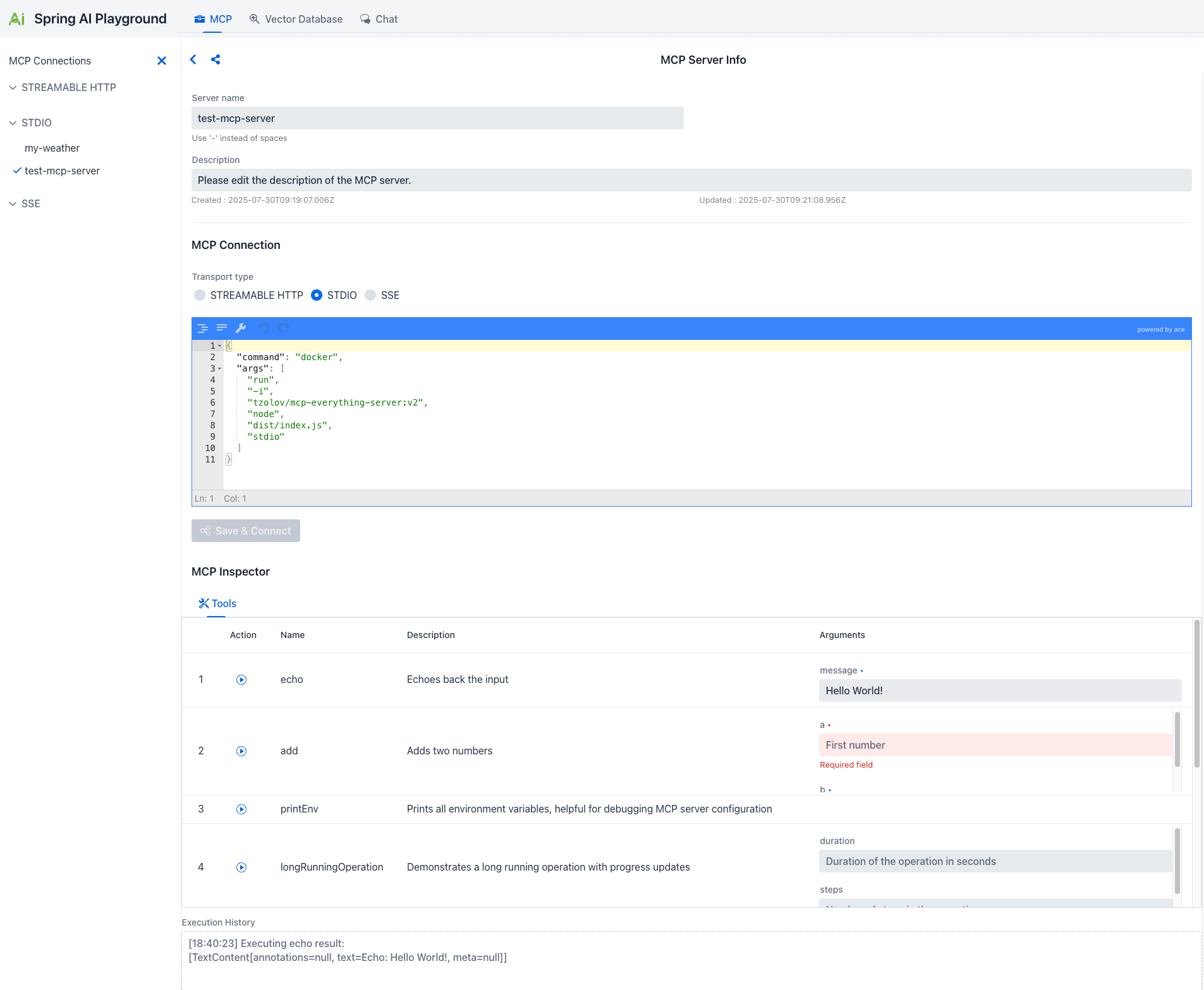
Spring AI Playground now includes a comprehensive MCP Server that provides a visual interface for managing connections to external tools through AI models. This feature leverages Spring AI's Model Context Protocol implementation to offer client-side capabilities.
Key Features
- Connection Management: Configure and manage MCP connections with multiple transport types including STREAMABLE HTTP, STDIO, and legacy HTTP+SSE transports.
- Server Configuration: Configure connections to MCP servers with customizable names, descriptions, and connection parameters.
- MCP Inspector: Explore available tools and their capabilities with detailed information including:
- Tool names and descriptions
- Required arguments and parameters
- Action definitions and specifications
- Interactive Tool Testing: Execute MCP tools directly from the playground with real-time results and execution history.
Note: STREAMABLE HTTP officially introduced in the MCP v2025‑03‑26 specification (March 26, 2025) — is a single-endpoint HTTP transport that replaces the former HTTP+SSE setup. Clients send JSON‑RPC via POST to /mcp, while responses may optionally use an SSE-style stream, with session‑ID tracking and resumable connections.
Getting Started with MCP
Configure MCP Server Connection:
- Access the MCP Playground from the main interface
- Set up your MCP server connection with the appropriate transport type and connection details
Explore Available Tools:
- Use the MCP Inspector to browse available tools and their specifications
- Review tool descriptions, required arguments, and expected parameters
- Understand the capabilities of your MCP server connection setup
Test Tool Execution:
- Select tools from the inspector and execute them with appropriate arguments
- Monitor execution results and review the execution history
- Debug and refine your MCP integration based on real-time feedback
This MCP Playground provides developers with a powerful visual tool for prototyping, testing, and debugging Model Context Protocol integrations, making it easier to build sophisticated AI applications with contextual awareness.
Vector Database
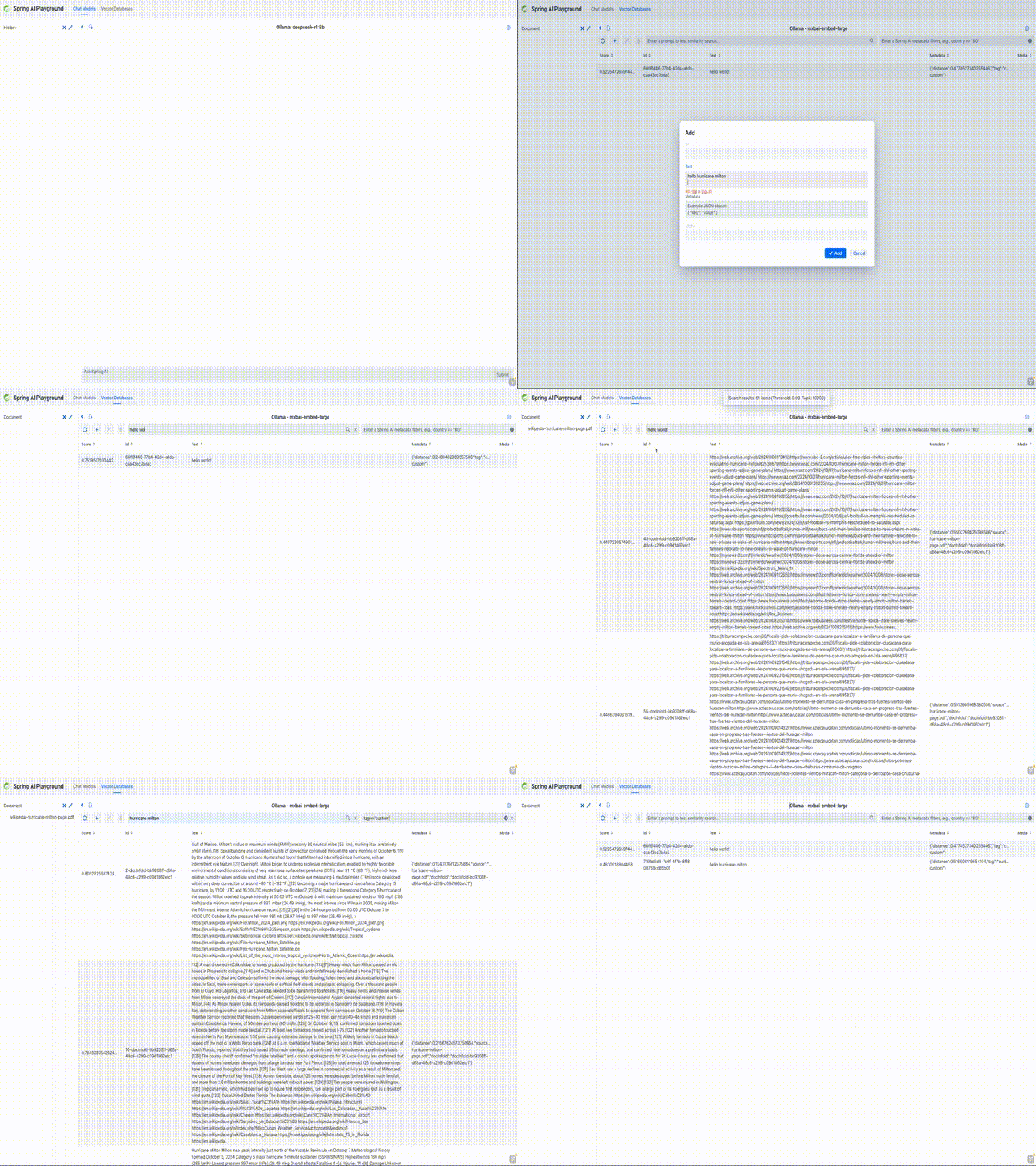
Spring AI Playground offers a comprehensive vector database playground with advanced retrieval capabilities powered by Spring AI's VectorStore API integration.
- Multi-Provider Testing: Switch between vector database providers without code changes
- Syntax Standardization: Query different databases using Spring AI's unified interface
Support for Major Vector Database Providers
Vector Database providers including Apache Cassandra, Azure Cosmos DB, Azure Vector Search, Chroma, Elasticsearch, GemFire, MariaDB, Milvus, MongoDB Atlas, Neo4j, OpenSearch, Oracle, PostgreSQL/PGVector, Pinecone, Qdrant, Redis, SAP Hana, Typesense and Weaviate.
Key Features
- Custom Chunk Input: Directly input and chunk custom text for embedding, allowing detailed RAG pipeline testing.
- Document Uploads: Upload files such as PDFs, Word documents, and PowerPoint presentations, and benefit from an end-to-end process of text extraction → chunking → embedding.
- Search and Scoring: Perform vector similarity searches and visualize results with similarity scores (0-1) for easy evaluation.
- Spring AI Filter Expressions: Utilize metadata-based filtering (e.g.,
author == 'John' && year >= 2023) to narrow search scopes and refine query results.
These features, combined with Spring AI's flexibility, provide a comprehensive playground for vector database testing and advanced integration into your applications.
Agentic Chat
Agentic Chat is an interactive environment for running Spring AI Agentic Systems. It provides a unified interface for executing chain-based RAG workflows and tool-enabled agents via MCP with advanced reasoning. It enables you to test and validate AI agents in a low-code environment by combining RAG from your indexed documents and dynamic tool execution via the MCP. This unified interface lets you:
- Run RAG Workflows: Ground AI responses in your own documents using chain-based retrieval
- Execute Tool-Enabled Agents: Use MCP-connected tools with LLM reasoning for multi-step problem solving
- Test Agentic Strategies: Validate complete agent behaviors by selecting documents and tools in a single chat session
Key Features
- Document Selection: Choose from indexed documents to enable RAG and ground responses in your knowledge base
- Tool Selection: Select MCP connections to enable tool-enabled agents with autonomous reasoning
- Real-time Feedback: View retrieved documents, executed tools, and reasoning chains in conversation responses
- Combined Workflows: Run both RAG and tool-enabled agents simultaneously for comprehensive AI interactions
- Model Support: Use any LLM provider; tool-enabled agents require models with function calling and reasoning capabilities
Two Integrated Paradigms
This integration brings the power of [Spring AI Agentic Systems](https://docs.spring.io/spring-ai/reference/api/effective-agents.html) into a single, intuitive interface for rapid prototyping and optimization.Agentic Chat operates by combining two distinct patterns:
1. RAG: Knowledge via Chain Workflow
This follows a deterministic Chain Workflow. When you select documents, the system follows a fixed sequence:
- Retrieval: It searches your Vector Database for relevant information.
- Augmentation: It injects that information as context into the prompt.
- Generation: The LLM answers based on the provided facts.
Setup: Upload and manage your documents in the Vector Database before selecting them in the Agentic Chat sidebar.
2. MCP: Actions via Agentic Reasoning
This follows a dynamic Agentic Workflow. When MCP connections are enabled, the LLM acts as an autonomous agent:
- Reasoning: The model analyzes your request and decides which tools are necessary.
- Action: It calls tools (via MCP) to fetch real-time data or perform external actions.
- Observation: It evaluates the tool output and decides if further actions or a final response are needed.
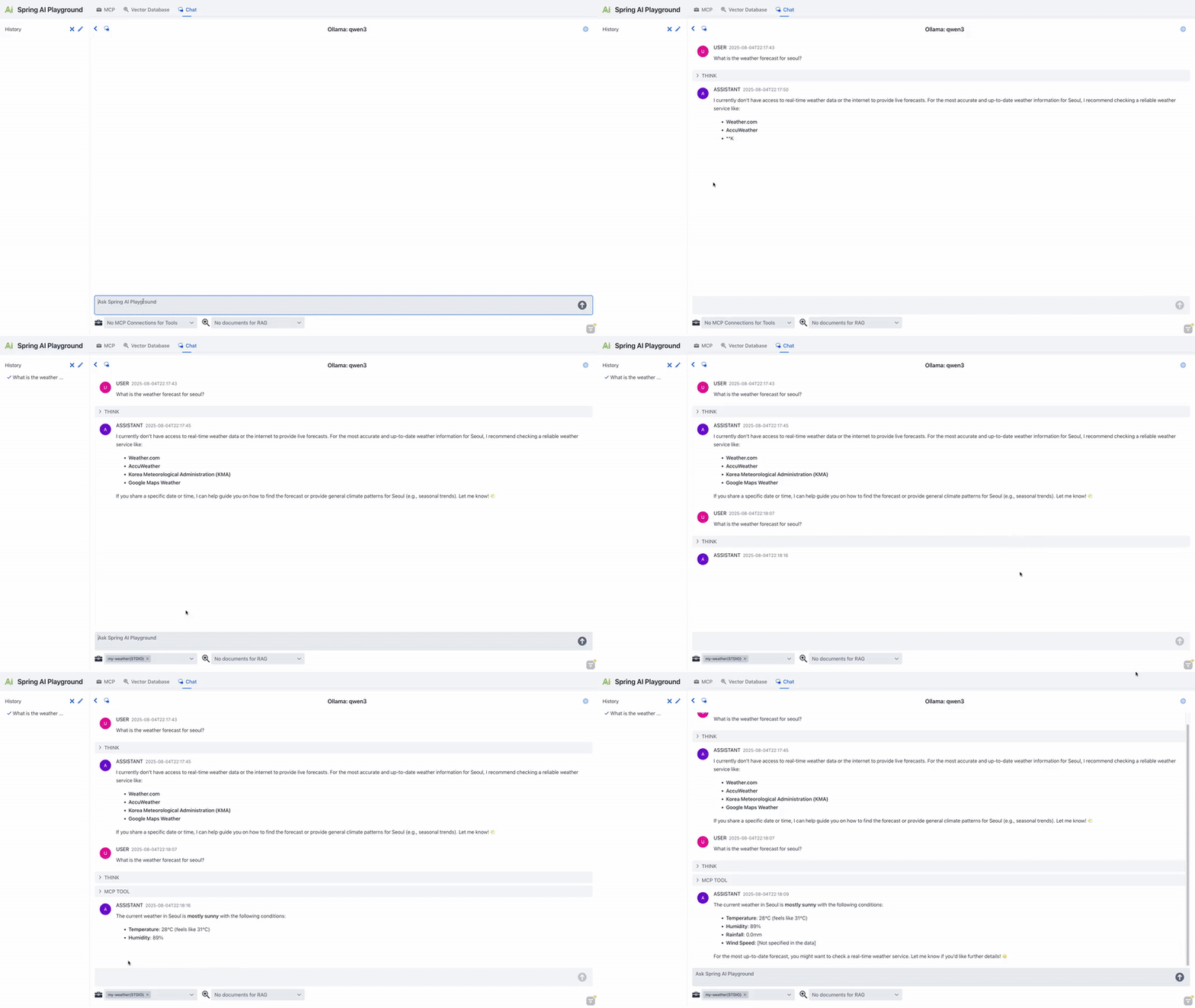
Workflow Integration
- Configure Capabilities:
- Set up your knowledge base in Vector Database.
- Configure your external tools in MCP Server.
- Develop your own tools in Tool Studio.
- Compose Your Agent:
- In the Agentic Chat page, select the specific Documents (Knowledge) and MCP Connections (Tools) you want to enable.
- Execute & Observe:
- Send a message. The LLM will use the RAG chain for context and reasoning-based MCP tool calls to fulfill the request.
⚠️ Requirements for Agentic Reasoning (Ollama)
To fully utilize the Agentic capabilities (especially MCP tool usage), the underlying model must be specifically trained for Reasoning and Function Calling.
- Tool-Enabled Models: Ensure you are using a model from Ollama's Tool Category.
- Reasoning-Enabled Models: Ensure you are using a model from Ollama's Thinking Category.
- Reasoning Power: Models like Qwen 3 and GPT-OSS are recommended for their ability to handle the complex logic required for tool orchestration.
- Verification: Always test your tool configurations in the MCP Inspector before running them in the Agentic Chat.
Agentic Chat Architecture Overview

This Chat experience facilitates exploration of Spring AI's workflow and agentic paradigms, empowering developers to build AI systems that combine chain-based RAG workflows with agentic, tool-augmented reasoning, following Spring AI’s Agentic Systems architecture with tool-augmented reasoning (via agents) for robust, context-aware prototypes.
| Component | Type | Description | Configuration Location | Key Benefits | Model Requirements |
|---|---|---|---|---|---|
| LLM | Core Model | Executes chain-based workflows and performs agentic reasoning for tool usage within a unified chat runtime. | Agentic Chat | Central reasoning and response generation; supports both deterministic workflows and agentic patterns. | Chat models; tool-aware and reasoning-capable models recommended. |
| Retrieval (RAG) | Chain Workflow | Deterministic retrieval and prompt augmentation using vector search over selected documents. | Vector Database | Predictable, controllable knowledge grounding; tunable retrieval parameters (Top-K, thresholds). | Standard chat + embedding models. |
| Tools (MCP) | Agentic Execution | Dynamic tool selection and invocation via MCP, driven by LLM reasoning and tool schemas. | Tool Studio, MCP Playground | Enables external actions, multi-step reasoning, and adaptive behavior. | Tool-enabled models with function calling and reasoning support. |
| Memory | Shared Agentic State | Sliding window conversation memory shared across workflows and agents via ChatMemoryAdvisor. | Spring AI Framework (InMemoryChatMemory) | Coherent multi-turn dialogue with a sliding window (Max: 10); improves coherence, planning, and tool usage quality. | Models benefit from longer context and structured reasoning. |
By leveraging these elements, the Agent Chat menu goes beyond basic Q&A, enabling the creation ofeffective, modular AI applications that incorporate both workflow predictability and agentic autonomy.
Upcoming Features
Here are some features we are planning to develop for future releases of Spring AI Playground:
Advanced Agentic Tooling (Capability Factory)
Planned features to abstract reusable agentic configurations into first-class built-in tools:
- MCP Tool Composer: Ability to group multiple tools from different MCP servers into a single, unified tool.
- RAG Tool Generator: Automatically turn a specific Vector Database query configuration (including similarity thresholds and Top-K) into a reusable RAG tool.
- Agent-as-a-Tool: Package an entire Agentic Chat configuration—including specific LLM settings, document selections, and MCP toolsets—into a standalone "Agent Tool" that can be called by other agents.
Infrastructure & Enterprise Features
- Observability: Tracking and monitoring for AI performance, usage, and errors
- Authentication: Login and security features for access control
- Multimodal Support: Embedding, image, audio, and moderation models from Spring AI
These features will help make Spring AI Playground even better for testing and building AI projects.


