
Isaac Sim MCP Server


Natural language control for NVIDIA Isaac Sim through the Model Context Protocol (MCP).
Connect any MCP-compatible IDE (Cursor, VS Code, Claude Code, Windsurf, JetBrains) to a running Isaac Sim instance and control it with plain-English prompts -- create robots, build scenes, run simulations, and debug physics all from your editor.
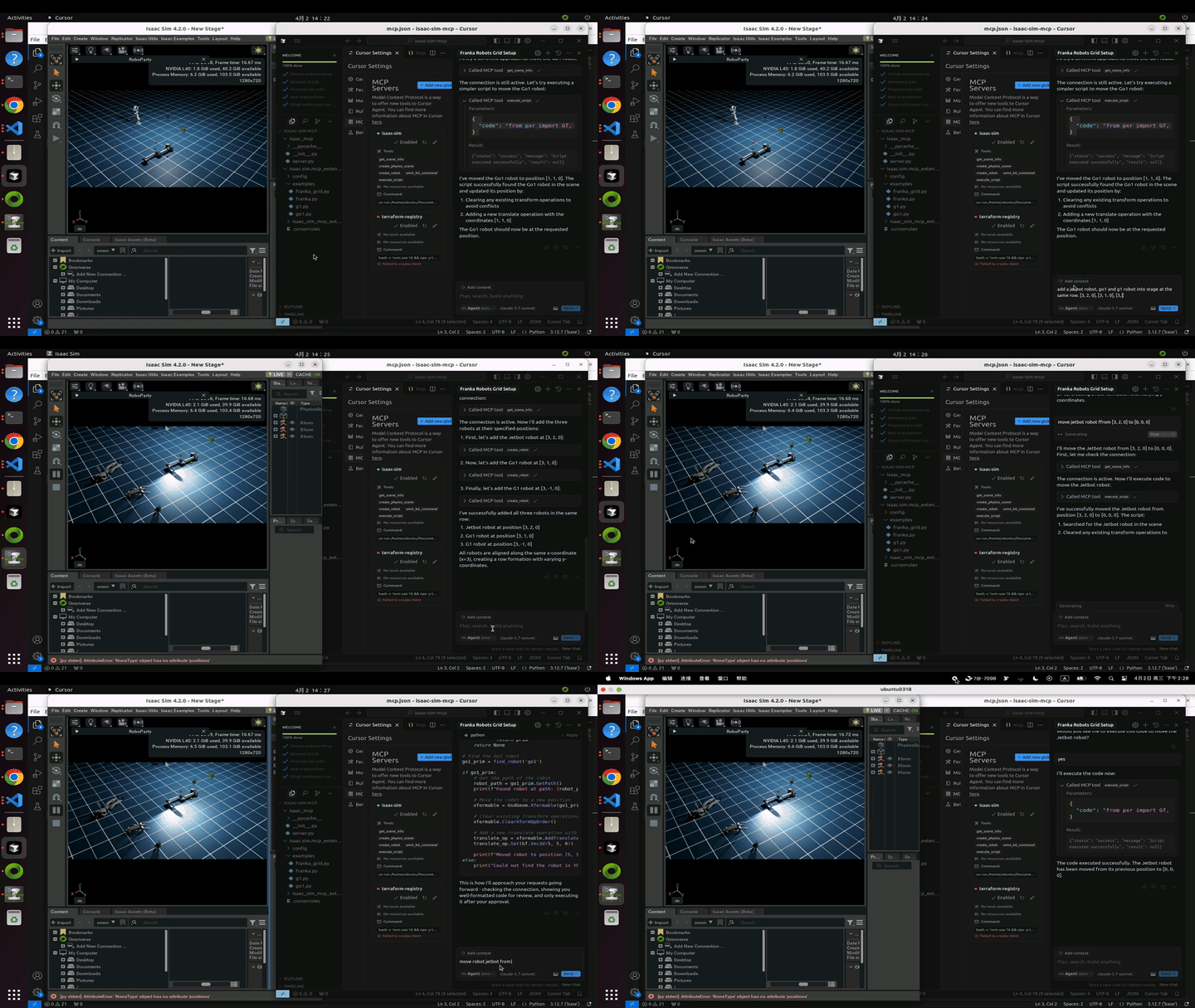
Highlights
- 39 tools across 8 categories -- scene, objects, lighting, robots, sensors, materials, assets, simulation
- 107+ robots auto-discovered from the Isaac Sim asset library (Franka, UR, Unitree, Boston Dynamics, and more)
- Step-and-observe debugging -- step the simulation and inspect prim positions, joint states, and physics in one call
- Hot-reload -- iterate on Python controllers without restarting Isaac Sim
- Multi-instance -- run multiple Isaac Sim sessions side by side on different ports
- Built for Isaac Sim 5.1.0 with a modular adapter layer for version isolation
Installation
Option A: pip install (recommended)
pip install isaacsim-mcp-server
This installs the MCP server and the isaacsim-mcp-server CLI. You still need the Isaac Sim extension from the repo (see Launching Isaac Sim below).
Option B: From source
git clone https://github.com/whats2000/isaacsim-mcp-server
cd isaacsim-mcp-server
./scripts/setup_python_env.sh
Requirements
| Requirement | Version |
|---|---|
| NVIDIA Isaac Sim | 5.1.0 |
| Python | 3.10+ |
uv |
latest (for source install) |
Quick Start
1. Set up the environment
If you installed from source:
./scripts/setup_python_env.sh
2. Launch Isaac Sim with the extension
./scripts/run_isaac_sim.sh
You should see in the logs:
Registered 40 command handlers
Isaac Sim MCP server started on localhost:8766
export BEAVER3D_MODEL="<your beaver3d model name>"
export ARK_API_KEY="<your beaver3d api key>"
export NVIDIA_API_KEY="<your nvidia api key>"
3. Connect your IDE
Add the MCP server to your editor. Replace the path with your actual repo location.
Claude Code (CLI)claude mcp add isaac-sim /path/to/isaacsim-mcp-server/scripts/run_mcp_server.sh
Or edit ~/.claude.json / .mcp.json:
{
  "mcpServers": {
    "isaac-sim": {
      "command": "/path/to/isaacsim-mcp-server/scripts/run_mcp_server.sh"
    }
  }
}
Create .vscode/mcp.json in your workspace:
{
  "servers": {
    "isaac-sim": {
      "command": "/path/to/isaacsim-mcp-server/scripts/run_mcp_server.sh"
    }
  }
}
Open Cursor Settings > MCP, or edit ~/.cursor/mcp.json:
{
  "mcpServers": {
    "isaac-sim": {
      "command": "/path/to/isaacsim-mcp-server/scripts/run_mcp_server.sh"
    }
  }
}
Edit the config file for your platform:
- macOS:
~/Library/Application Support/Claude/claude_desktop_config.json - Windows:
%APPDATA%\Claude\claude_desktop_config.json - Linux:
~/.config/Claude/claude_desktop_config.json
{
  "mcpServers": {
    "isaac-sim": {
      "command": "/path/to/isaacsim-mcp-server/scripts/run_mcp_server.sh"
    }
  }
}
Open Windsurf Settings > MCP or edit ~/.codeium/windsurf/mcp_config.json:
{
  "mcpServers": {
    "isaac-sim": {
      "command": "/path/to/isaacsim-mcp-server/scripts/run_mcp_server.sh"
    }
  }
}
Go to Settings > Tools > AI Assistant > MCP Servers and add the server. See the JetBrains MCP docs for details.
4. Start prompting
Check the connection with get_scene_info.
If the scene is empty, create a physics scene.
Add a Franka robot at the origin and a Go1 quadruped at [2, 0, 0].
Architecture
MCP Client (IDE)
      |
      v
isaacsim-mcp-server          (PyPI package / CLI)
      |
      v  TCP socket (localhost:8766)
      |
isaac.sim.mcp_extension      (Omniverse extension)
      |
      v
Handlers -> Adapter -> Isaac Sim 5.1.0 APIs
Tools
39 tools across 8 categories:
| Category | Count | What you can do |
|---|---|---|
| Scene | 7 | Inspect scenes, create physics, list/load environments, browse prims |
| Objects | 4 | Create, delete, transform, and clone primitives |
| Lighting | 2 | Create and tune lights |
| Robots | 6 | Spawn 107+ robots, inspect joints, set positions, refresh library |
| Sensors | 4 | Create cameras/LiDAR, capture images, get point clouds |
| Materials | 2 | Create and apply materials |
| Assets | 4 | Import URDF, load/search USD, generate 3D models |
| Simulation | 10 | Play/pause/stop/step, execute Python, inspect physics, hot-reload |
Scene: get_scene_info create_physics_scene clear_scene list_prims get_prim_info list_environments load_environment
Objects: create_object delete_object transform_object clone_object
Lighting: create_light modify_light
Robots: create_robot list_available_robots refresh_robot_library get_robot_info set_joint_positions get_joint_positions
Sensors: create_camera capture_image create_lidar get_lidar_point_cloud
Materials: create_material apply_material
Assets: import_urdf load_usd search_usd generate_3d
Simulation: play_simulation pause_simulation stop_simulation step_simulation set_physics_params execute_script get_simulation_state get_physics_state get_joint_config reload_script
Example Prompts
Scene bootstrap
Check the connection with get_scene_info. If the scene is empty, create a physics scene.
Add stronger lighting and place a camera that looks at the workspace.
Robot layout
Create three Franka robots in a row at [0,0,0], [2,0,0], and [4,0,0].
Then add a Go1 robot at [1, 3, 0].
Environment loading
List available environments, choose a warehouse-like one, and load it.
Create a camera and capture an image.
Asset search and 3D generation
Search for a rusty desk, load the best result near [0, 5, 0], scaled to [2, 2, 2].
Advanced Usage
Multiple Instances
Run multiple Isaac Sim sessions side by side. Each uses a different port (auto-assigned from 8766).
# First instance (default port 8766)
claude mcp add isaac-sim /path/to/isaacsim-mcp-server/scripts/run_mcp_server.sh

# Second instance (port 8767)
claude mcp add isaac-sim-2 -e ISAAC_MCP_PORT=8767 -- /path/to/isaacsim-mcp-server/scripts/run_mcp_server.sh
{
  "mcpServers": {
    "isaac-sim": {
      "command": "/path/to/isaacsim-mcp-server/scripts/run_mcp_server.sh"
    },
    "isaac-sim-2": {
      "command": "/path/to/isaacsim-mcp-server/scripts/run_mcp_server.sh",
      "env": { "ISAAC_MCP_PORT": "8767" }
    }
  }
}
Desktop Launcher (Linux)
Install a dedicated Isaac Sim MCP application icon:
./scripts/install_desktop_entry.sh
This creates a launcher that auto-assigns ports, waits for the extension socket, and cleans up on exit.
Recommended Workflow
- Start with
get_scene_infoto verify the connection - Create a physics scene if the stage is empty
- Prefer purpose-built tools before
execute_script - Use
list_available_robots/list_environmentsbefore loading - Use
step_simulationwithobserve_primsandobserve_jointsfor debugging - Use
reload_scriptto iterate on controllers without restarting
Demo: Franka Pick-and-Place
A ready-to-run demo at demo/franka_pick_place.py using RMPflow for motion planning:
1. Create a physics scene, ground plane, and a Franka FR3 robot
2. Add two tables and a small cube on the first table
3. Wire the pick-and-place script into an Action Graph
4. Press Play -- the robot picks the cube and places it on the second table
Uses the observability tools: get_joint_config, step_simulation with observe_prims, get_physics_state, and reload_script.
Development
# Run the MCP inspector
./.venv/bin/python -m mcp dev ./isaac_mcp/server.py
The inspector is available at http://localhost:5173.
Setup Notes
| Script | Purpose | Default |
|---|---|---|
setup_python_env.sh |
Create venv and install package | Python 3.10 |
run_isaac_sim.sh |
Launch Isaac Sim with extension | $HOME/isaacsim |
run_mcp_server.sh |
Start the MCP server | Port 8766 |
launch_isaac_sim_mcp.sh |
Combined launcher | Auto-assigns port |
dev_mcp_server.sh |
Dev server with hot-reload | Port 8766 |
Override defaults:
PYTHON_SPEC=3.11 ./scripts/setup_python_env.sh
ISAACSIM_ROOT=/opt/isaacsim ./scripts/run_isaac_sim.sh
If Isaac Sim says Can't find extension with name: isaac.sim.mcp_extension:
# Make sure you're in the repo root
pwd
test -f ./isaac.sim.mcp_extension/config/extension.toml && echo OK
Note: --ext-folder must point to the repo root, not to isaac.sim.mcp_extension/ directly.
Contributing
Pull requests are welcome. Improvements to tools, docs, adapters, and tests are all useful.
License
MIT License. Copyright (c) 2023-2025 omni-mcp, Copyright (c) 2026 whats2000. See LICENSE.


